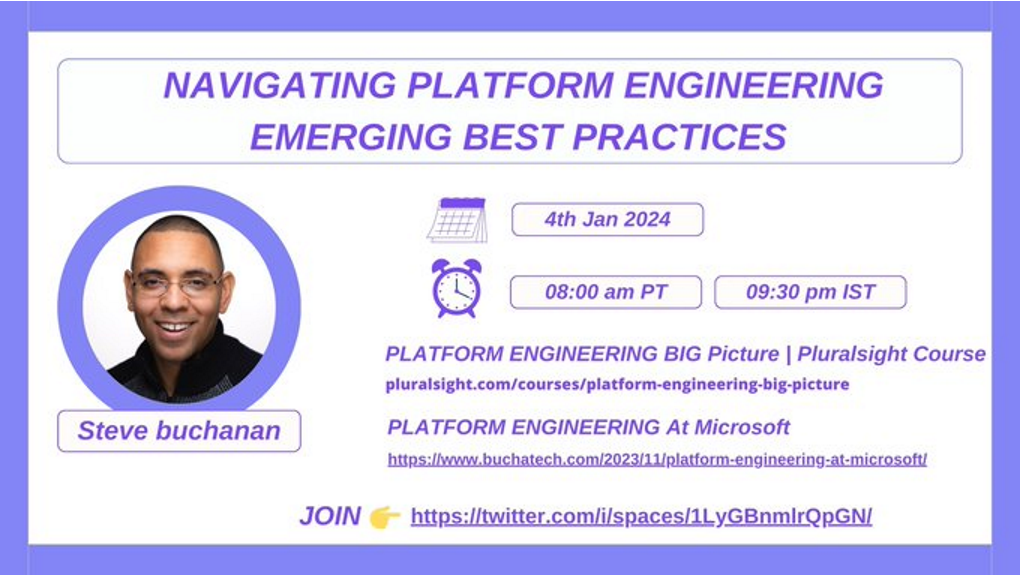
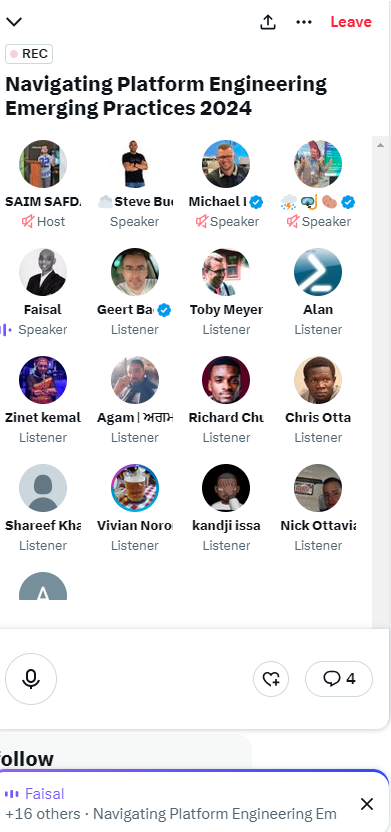
To kick off the new year I am trying something new. For the 1st time I will be speaking on a Twitter space. This Twitter space is about Platform Engineering. It was hosted by cloud native and open source champion SAIM SAFDAR (@cloudnativeboy).
On this twitter space we talked about how to prepare your journey of learning and navigating the Platform Engineering (PE) landscape, my latest PE course, the PE guide from Microsoft and emerging best practices, and taking question’s from folks on the space.
We even had special guest Kubernetes and Platform Engineering expert Michael Levan (@TheNJDevOpsGuy) show up on the space! He shared some great insight on PE as well.
If you missed the space you can watch a recording of the space here:
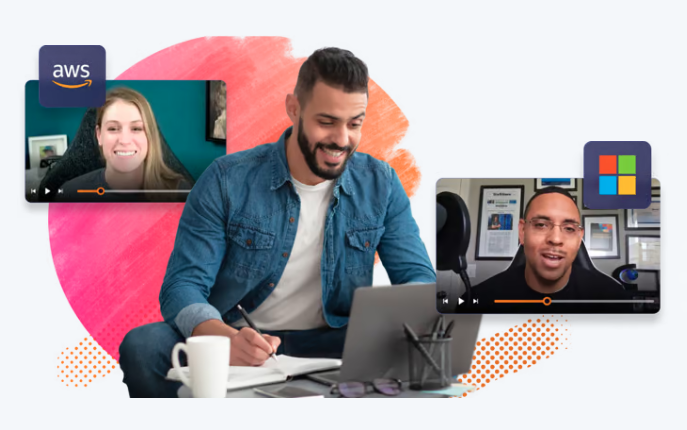
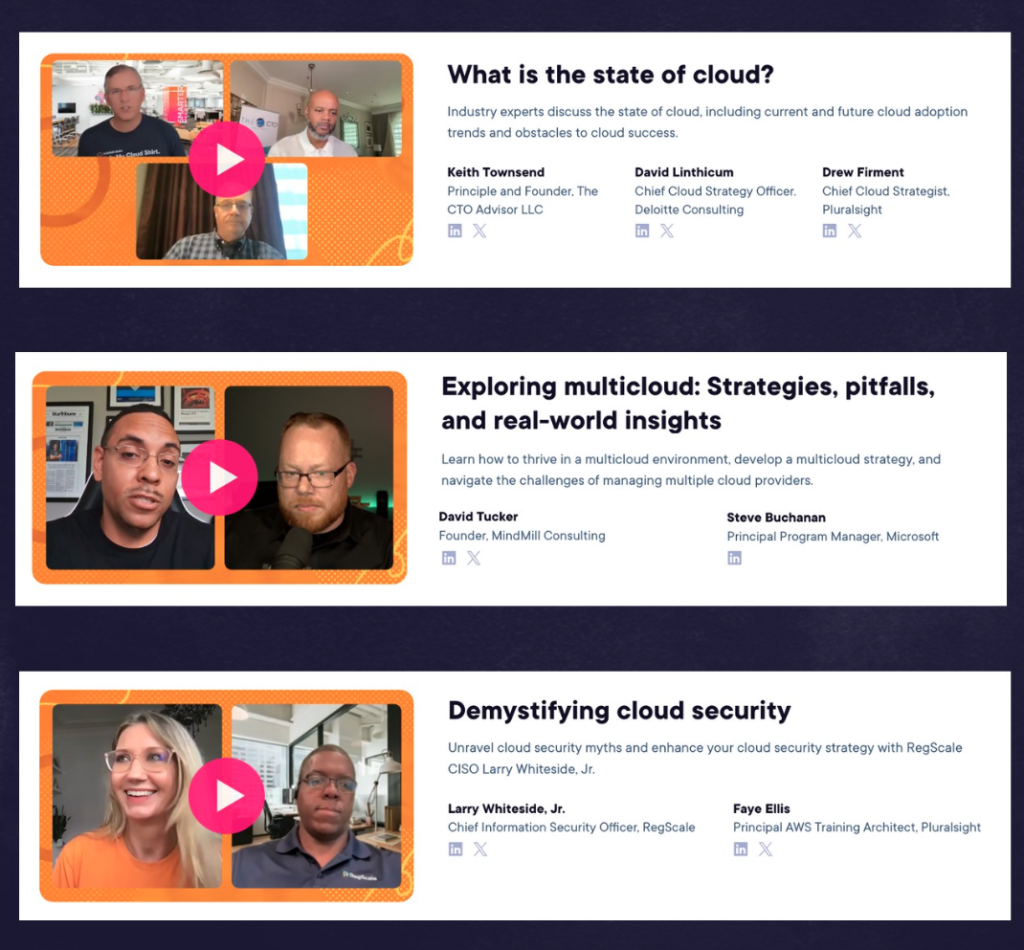
✨️ I am thrilled to be one of the experts in Pluralsight‘s Cloud Transformation Strategy Guide! The strategy guide is a series of video sessions with various cloud experts. In the guide cloud experts at AWS, Microsoft, and more share their insights to help you build a cloud strategy, close the cloud skills gap, and upgrade your people and processes for the long haul.
It was an honor to join David Tucker in the ☁ “Exploring multicloud: Strategies, pitfalls, and real-world insights” session!
💡In this session we talked about how to thrive in a multicloud environment, develop a multicloud strategy, and navigate the challenges of managing multiple cloud providers. You can watch it here:
In the cloud strategy guide, you’ll learn how to use cloud technology to push your organization forward.
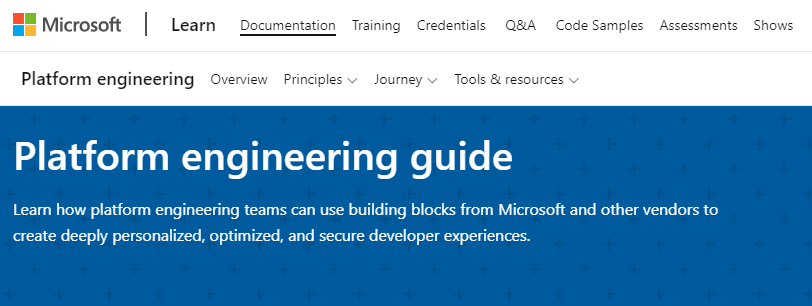
For a while, I have been hearing chatter around “What is Microsoft doing in the Platform Engineering space?” and “What is Microsoft’s stance on Platform Engineering?”. Well, today is the first day of Microsoft Ignite 2024 and I am happy to say Microsoft has officially released a Platform engineering guide. It can be found here: https://aka.ms/plat-eng-learn
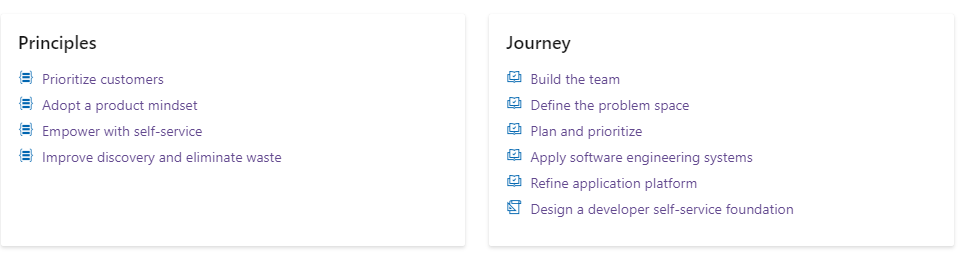
It is broken down into the following sections: Overview, Concept, How-To Guide, and Architecture!
Working through this guide will help you discover how platform engineering teams can leverage technologies from Microsoft and other vendors/providers to craft highly personalized, optimized, and secure developer experiences.
This guide essentially gives you the scoop on Microsoft’s perspective when it comes to Platform Engineering. It can be used to help you along your Platform Engineering journey!
Shout out to the core team that built this! DevDiv: Mark Weitzel, Chuck Lantz, Russell Conard and AKS Engineering: Daniel Sol.
Another cool thing launched today is Microsoft’s Platform Engineering Interest Group.
At Microsoft, we want to hear about your challenges with Platform Engineering and provide opportunities to connect with other teams, at Microsoft and at other companies, who are working together to build solutions in the Platform Engineering space. Joining this group will let you get exclusive early access to new tools and services from Microsoft. Sign up here:
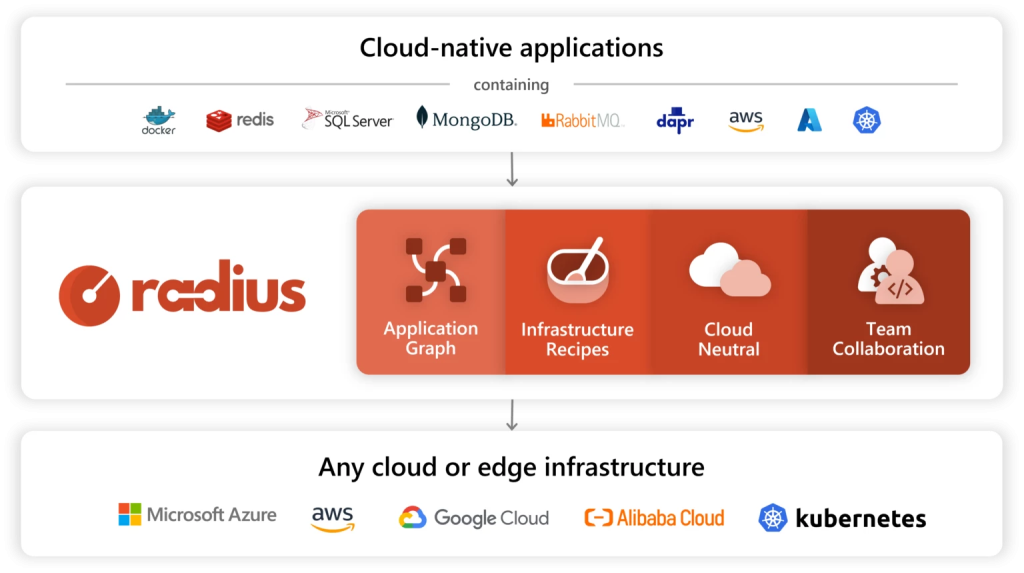
The last thing I want to mention in this post is a new open-source product from Microsoft named Radius. Radius is a single tool to describe, deploy, and manage your entire application. Radius is dedicated to addressing the platform engineering challenges associated with facilitating application deployments across on-premises infrastructure and major cloud providers such as Microsoft Azure and Amazon Web Services.
Radius is not an IDP. It’s an optional part of an IDP focused on the applications that provides infrastructure Recipes, simplifying the platform configurations like permissions, connection strings, and more to manage the application and its resources.
Radius empowers developers to comprehend their applications, recognizing that an application extends beyond Kubernetes alone. Radius assists developers in visualizing all the components that form their application. More about Radius here: radapp.io
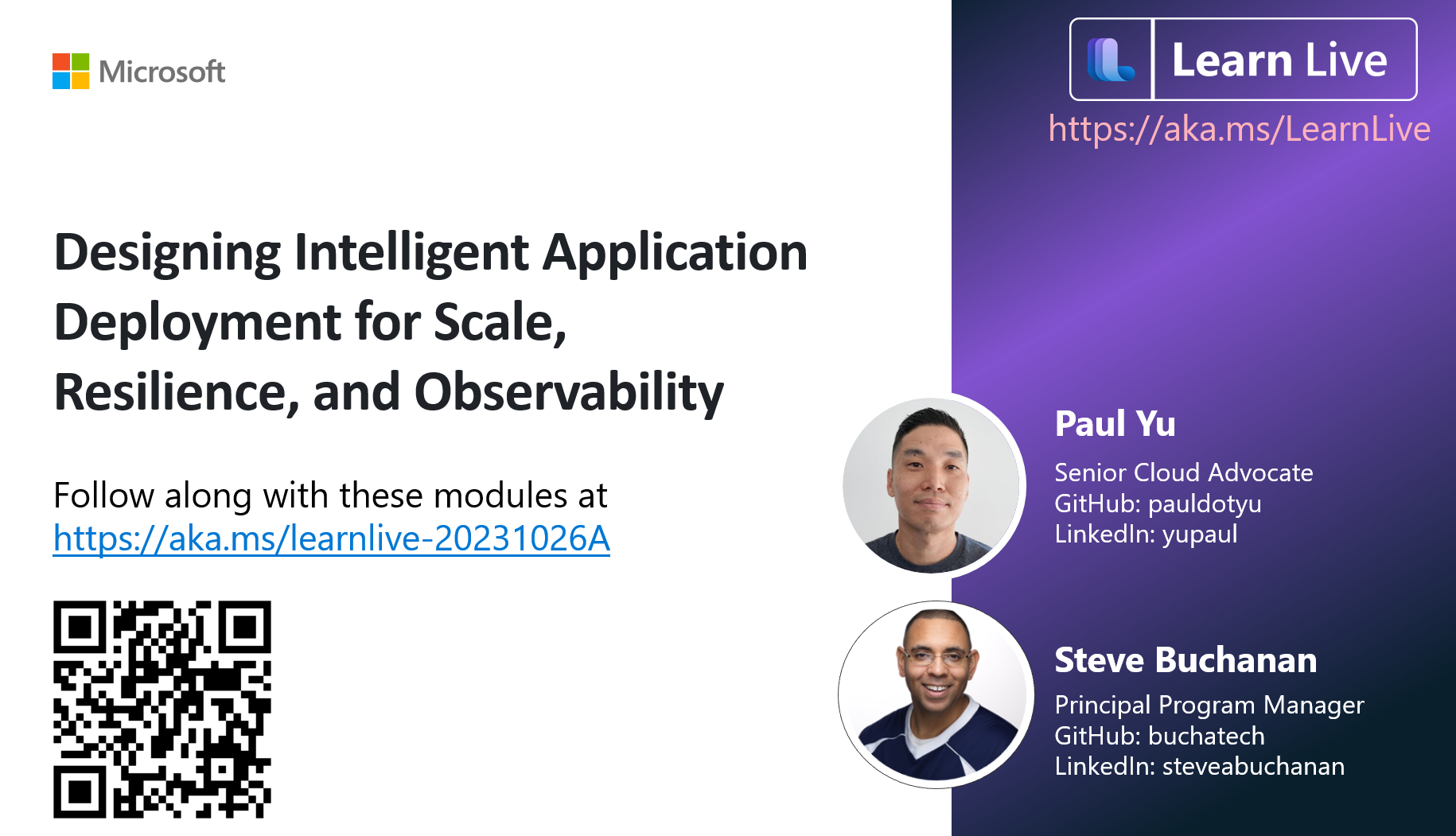
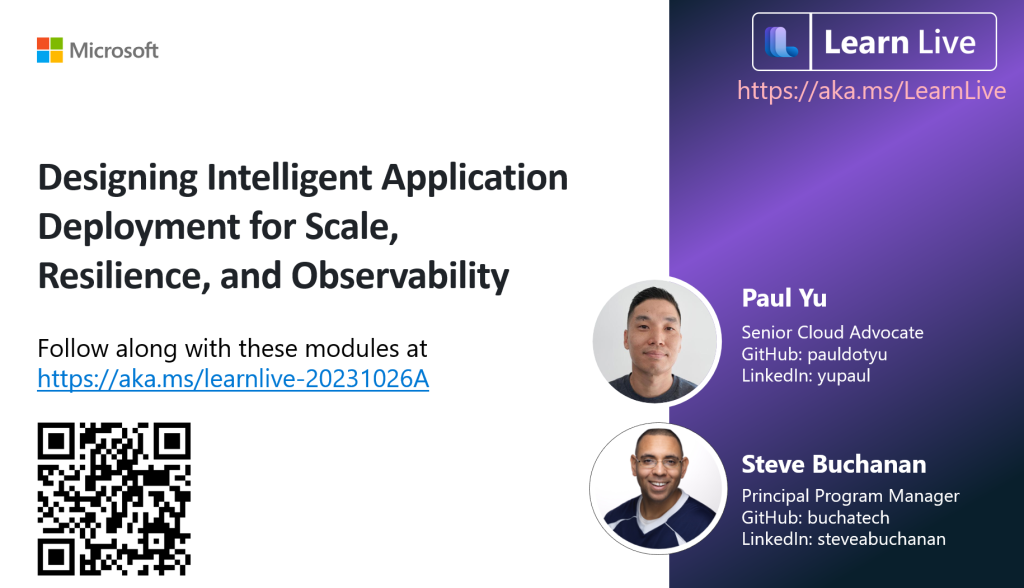
This week I will be co-hosting another Microsoft Learn Live session. This one is “Learn Live: Building Resilient Intelligent Apps On AKS” in the Intelligent apps series. It is going to be action-packed full of several Microsoft technologies, AI, and AKS.
It is a part of Microsoft Reactor.
Microsoft Reactor provides events, training, and community resources to help startups, entrepreneurs, and developers. More on Reactor here: https://developer.microsoft.com/en-us/reactor.
In this Learn Live, I will be co-hosting as Cloud Native Developer Advocate Paul Yu will be leading us through a workshop.
Under the Computer Science Education Advancement Act (HF 759 and SF 757) (https://csforallmn.org/cs-ed-bill-2023/), the Minnesota Department of Education (MDE) has been charged to form a working group that will develop a strategic plan to improve Computer Science for k-12 education in the state of Minnesota. 🎓
🔄 There is an urgent need to elevate Minnesota’s computer science k-12 education position. Minnesota is currently last in the United States when it comes to computer science.
🔄I am thrilled to share that, among 80 applicants, I have been chosen as a member of this new “Minnesota Computer Science Education Working Group” by MDE! 🌟 It’s an honor to stand alongside esteemed technologists and educators from our state. Together, we are committed to crafting a comprehensive statewide computer science education program.
Our mission is clear: bridge the tech education gap in Minnesota’s schools through a plan for long-term and sustained growth of computer science education in all k-12 school districts and charter schools. The working group will develop a robust plan, slated to be presented to legislative committees overseeing education in the state. Upon approval, this plan will be set to improve computer science education statewide.
I am thankful to work at an organization such as Microsoft that supports employees to engage in initiatives such as this. This is a testament to Microsoft’s mission to “empower every person and every organization on the planet to achieve more”.
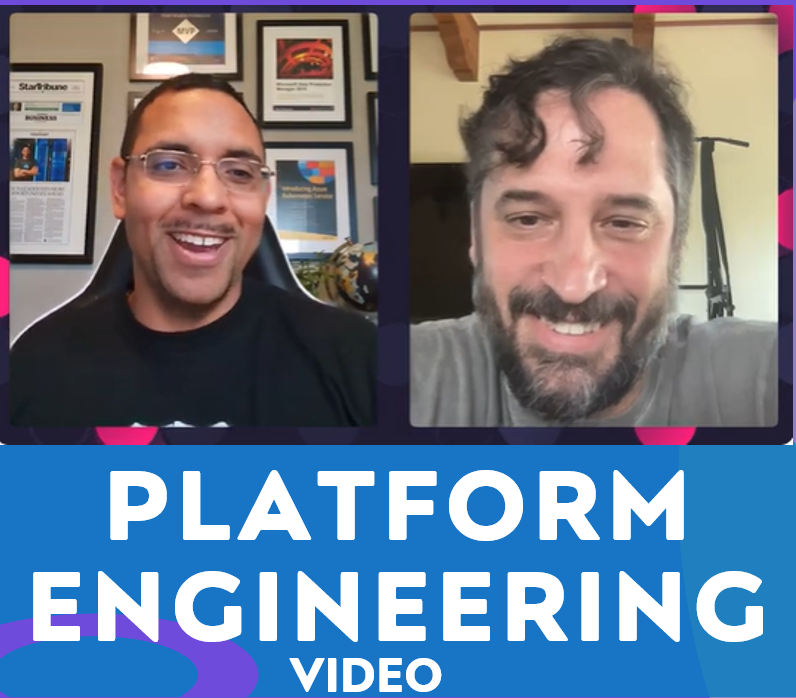
I’m very excited to announce something that has been in the works for a little while now. I was fortunate to interview the legendary Andrew Shafer (@littleidea). We had a discussion about Platform Engineering. If you don’t know Andrew here is his BIO:
“Andrew Clay Shafer helped create the tools and practices that made DevOps a word. He is fascinated with the dynamics of high-performing individuals and organizations and has a reputation for improving outcomes at the intersection of Open Source, Cloud Computing and Software Delivery working on Puppet, OpenStack, Cloud Foundry and Kubernetes before founding Ergonautic to focus on improving the way people work.“
Basically, he started this whole DevOps thing, was key in the DevOps Days events, has founded some high-profile companies, and more. He is the perfect person to chat with about Platform Engineering because if anyone knows it he does!
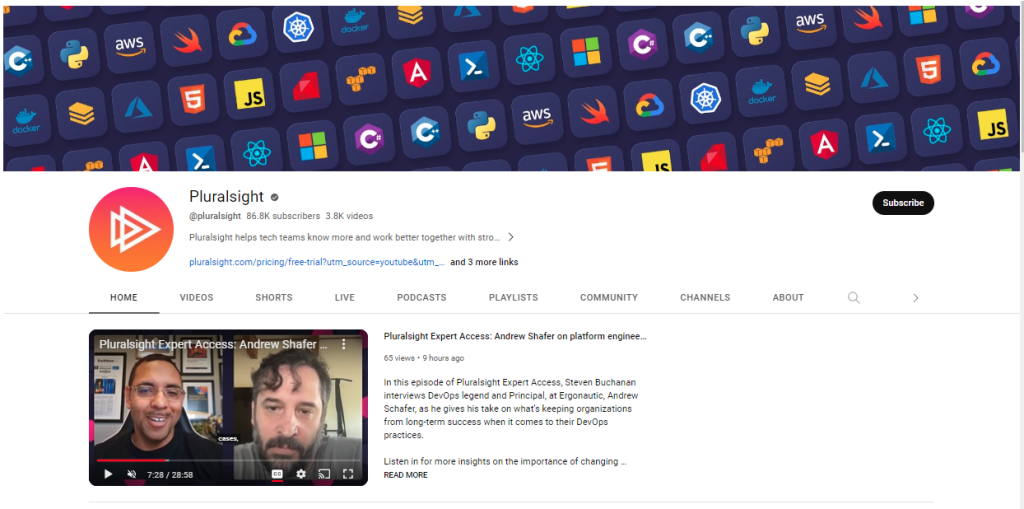
I chatted with Andrew in an episode of Pluralsight’s Expert Access. Expert Access is a YouTube series where we (Pluralsight authors) bring in some of the best minds in tech to hear how tech leaders are solving business challenges and their takes on what’s next.
The title of the episode is: “Pluralsight Expert Access: Andrew Shafer on platform engineering as an evolution, not a replacement“. In this episode, I interview Andrew, as he gives his take on what Platform Engineering is, what organizations are chasing to enable developers, and what’s keeping organizations from long-term success when it comes to their DevOps practices. In the discussion we tackle these questions and more:
Is Platform Engineering a result of failed DevOps efforts in organizations? Is it just a Service Catalog with the twist of it being geared towards devs?
Platforms are not a new concept in the software world. In one of your tweets, there is an interesting line “Continuous Delivery without a platform is malpractice.“ Is this highlighting that organizations have been doing DevOps without platforms? Can you break down this line for us? It seems like there may be a story behind this?
Some people may equate Platform Engineering to having an Internal Developer Platform, is this the core of PE or are there other technologies that are also core to it?
Watch the episode for more insights on the importance of changing practices–not just words–for achieving sustainable progress and seeing Platform Engineering as a holistic approach to DevOps and delivery.
Many organizations have embraced DevOps and adopted technologies like Kubernetes, cloud computing, and Infrastructure as Code (IaC) tools like Terraform or Pulumi. Despite these efforts, they often face challenges in delivering on the promises of DevOps and cloud-native. Platform engineering has emerged as the next step in the evolution, breaking down barriers and empowering developers to bring software to the market faster and more efficiently.
Recently I have been working on content to help educate and share my knowledge in this space. I am happy to announce two new pieces of content on Platform Engineering including a new course and a new blog.
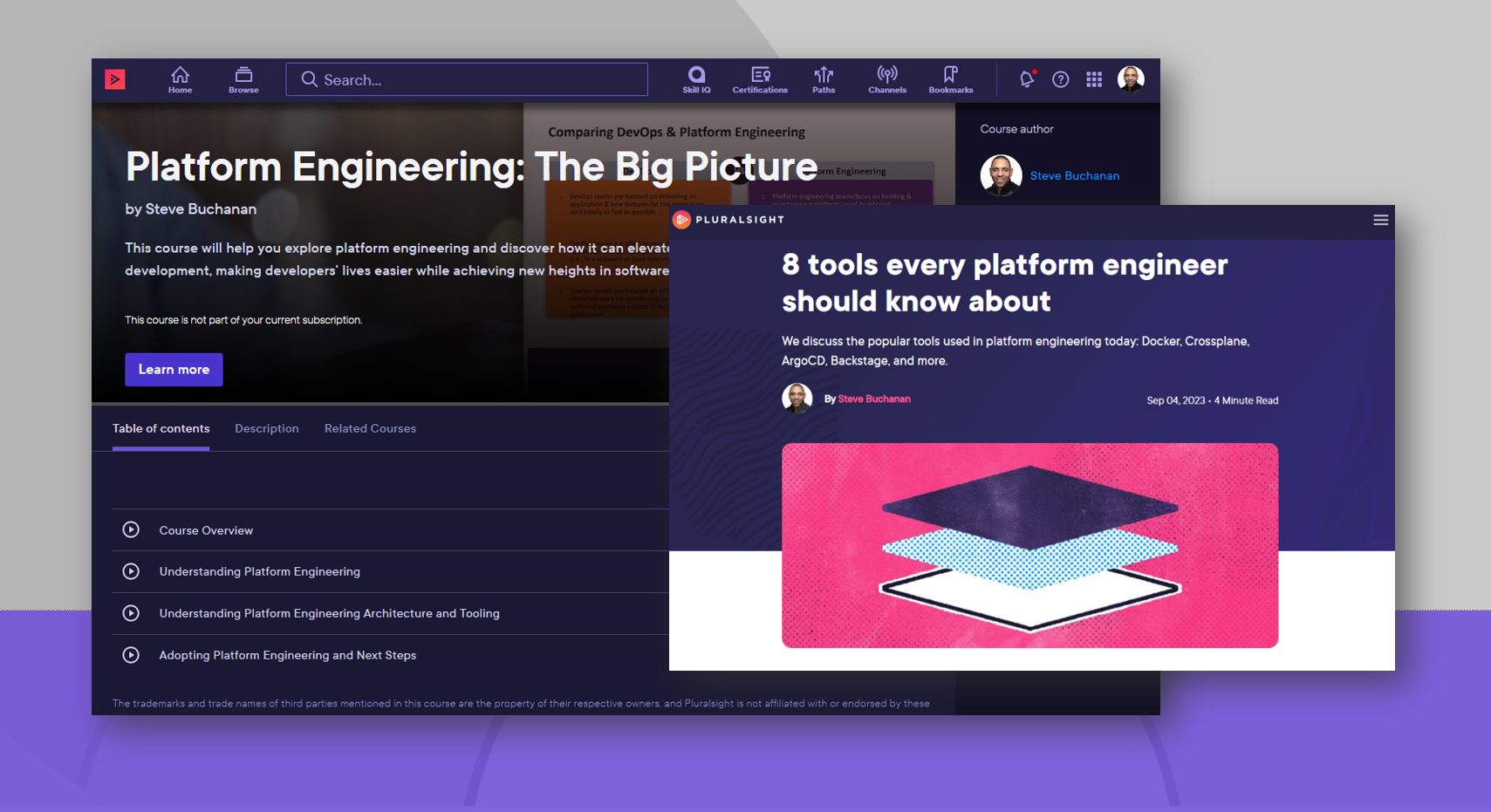
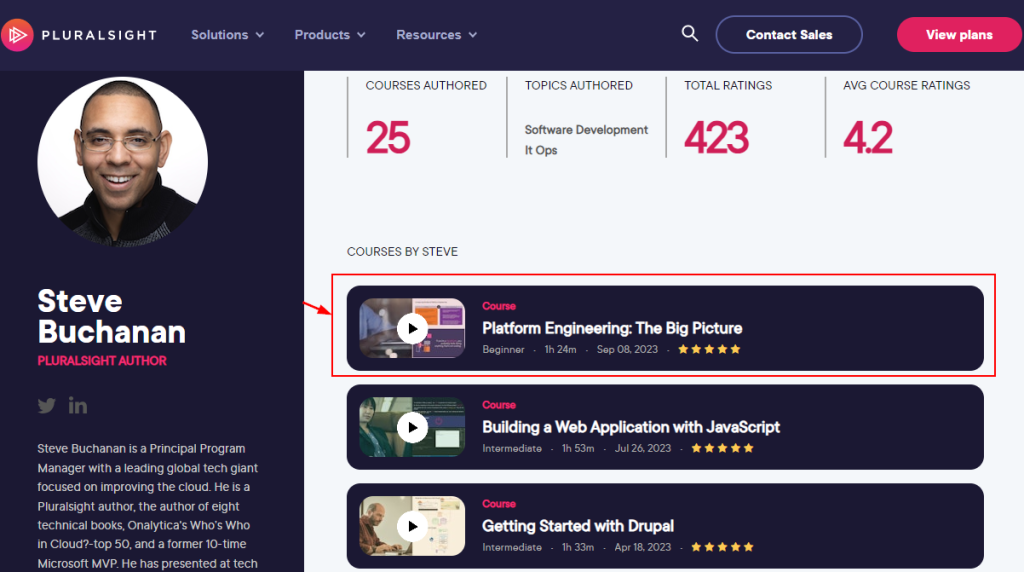
Course: Platform Engineering: The Big Picture
Last week my 22nd course was published on Pluralsight! I am really excited about this course because it covers something that has been really hot in tech lately. It is about Platform Engineering. Platform Engineering has emerged as the next step in the evolution, breaking down barriers and empowering teams. Being someone that works with Kubernetes and cloud native this course was right up my alley because I work directly in this space.
The course is titled “Platform Engineering: The Big Picture“. This course will help you explore platform engineering and discover how it can elevate cloud-native development, making developers’ lives easier while achieving new heights in software delivery. Platform Engineering unifies and centralizes toolchains & workflows for self-service making developers’ lives easier while achieving new heights in software delivery.
In this course, you will gain an understanding about Platform Engineering, its benefits, architecture, tooling, workflow and how to adopt it.
Some of the major topics covered in the course include:
A Platform Engineering overview and why it’s needed, how Platforms enhance DevOps and streamline cloud native.
A comparison of DevOps, SRE, and Platform Engineering.
You will learn about Platform Engineering Architecture, its tooling landscape, and Internal Developer Platforms.
Check out the “Platform Engineering: The Big Picture“ course here:
I hope you find value in this new Platform Engineering course. Be sure to follow my profile on Pluralsight so you will be notified as I release new courses!
Here is the link to my Pluralsight profile to follow me:
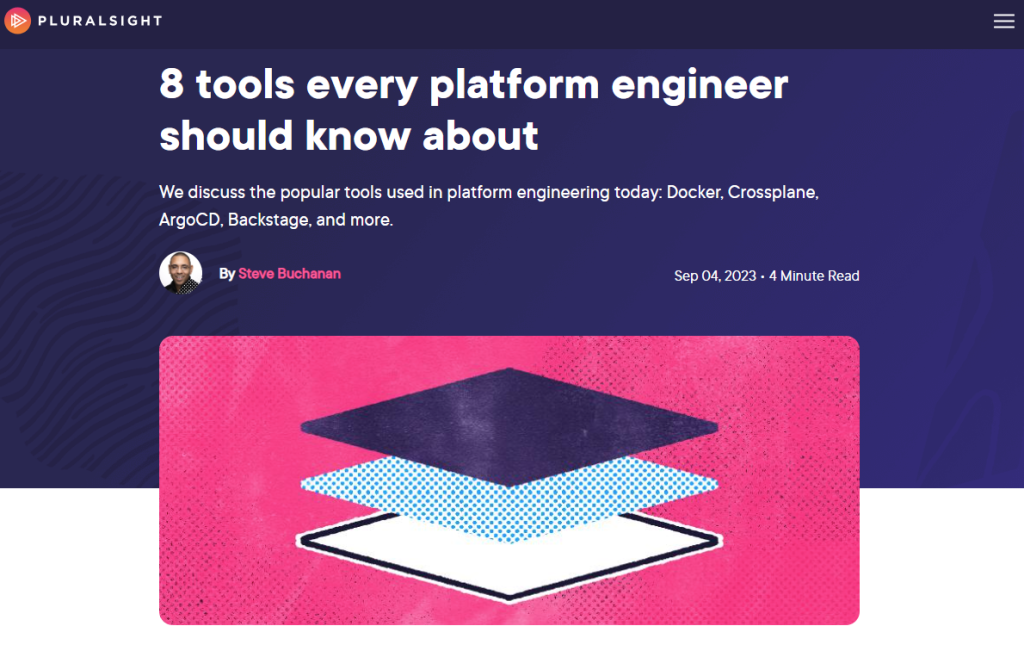
Blog: 8 tools every platform engineer should know about
I am also excited to announce my second Platform Engineering-related blog post on Pluralsight. This one is titled: “8 tools every platform engineer should know about”. In Platform Engineering there are a lot of tools that can make up a platform. It can be confusing and hard to know what tools to focus on in the Platform Engineering space. In this blog post, I list 8 tools that are a must-know when you are in the Platform Engineering space.
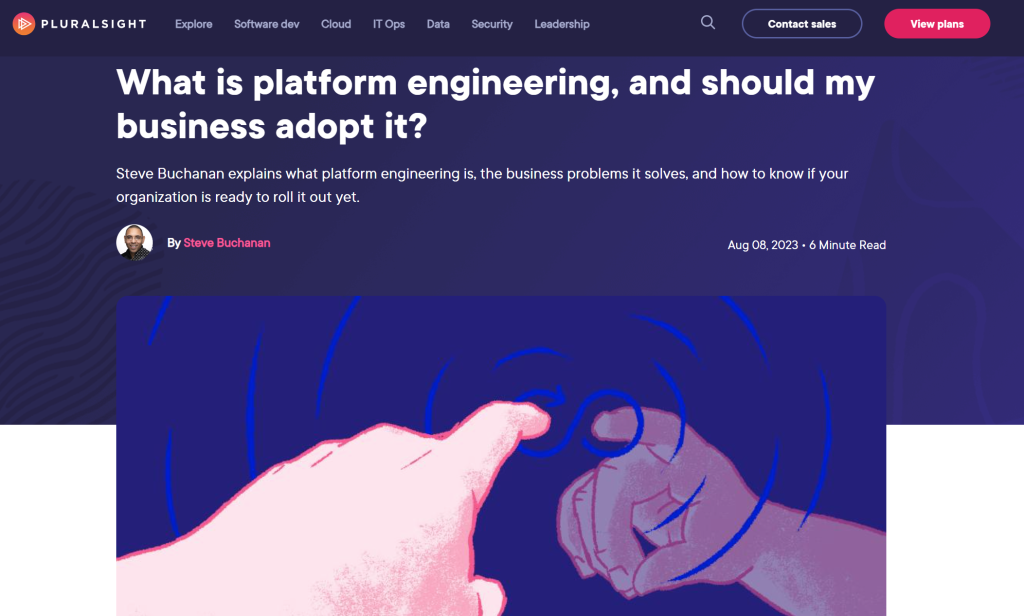
I am excited to announce my second ever blog on Pluralsight.com. This blog is about Platform Engineering. In this post I break down what platform engineering is, the business problems it solves, and how to know if your organization is ready to roll it out yet.
In the blog post, we explore why there is so much hype around platform engineering, if Platform Engineering is a replacement for DevOps, how Internal Developer Platforms help resolve the infrastructure gaps, and more. Be sure to check it out!
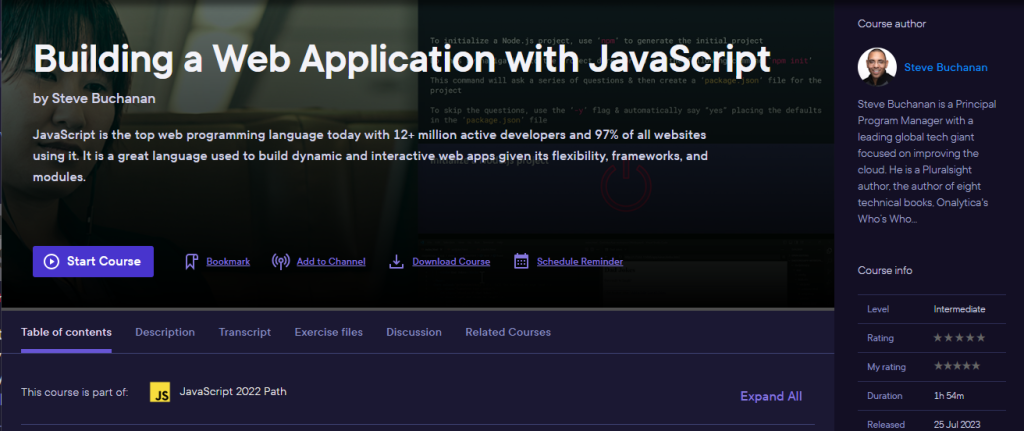
This week my 21st course published. In this course I take you on a journey to build a web app in JavaScript. JavaScript is the top web programming language today with 12+ million active developers and 97% of all websites using it. It is a great language used to build dynamic and interactive web apps given its flexibility, frameworks, and modules.
JavaScript is a must-have skill in your toolbelt when building web apps. In this course, Building a Web Application with JavaScript, you’ll learn to build a dynamic and interactive web app.
First, you’ll plan and set up your web app project. Next, you’ll discover how to build the layout, style, and CRUD for your app with HTML and CSS. Finally, you’ll learn how to code your app’s dynamic functionality in JavaScript and publish the app when done.
When you’re finished with this course, you’ll have the skills and knowledge for planning, building, styling, and publishing a web app in JavaScript needed to go from an idea to a fully functioning web app in JavaScript.
Check out the “Building a Web Application with JavaScript“ course here:
I am excited to announce that I was able to contribute a blog on Pluralsight.com. This blog is about GitOps. It will take you through what GitOps is, and why you should learn it.
In the blog post, look at the the benefits of GitOps for developers, work through GitOps tools and frameworks, what you need to get started with GitOps, and more. Be sure to check it out!