There is some exciting news for AKS. Brian Redmond a PM with the AKS team has worked to get the External AKS Community up and running again. This community will have monthly meetings and recorded content.
The AKS Community Meetings will be live-streamed on YouTube and will cover interesting technical content on AKS related topics “Ask me anything” sessions and more. Here is a recording of the inaugural meeting for the AKS Community. https://www.youtube.com/live/1_ukekQEzBw?feature=share&t=32
If you miss the old ‘AKS Office Hours’, you definitely need to check out this new AKS community. Looking forward to seeing this community grow!
To make sure you’re always in the loop and never miss a beat, follow the official PG on various social media sites. Stay informed about upcoming meetings, exclusive content drops, and other exciting AKS-related news:
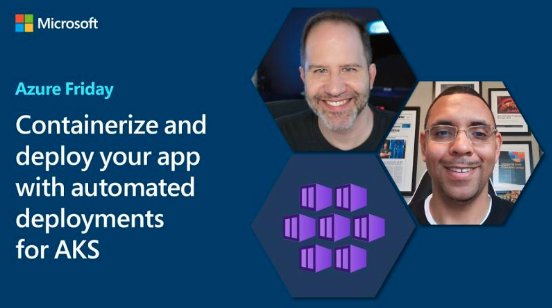
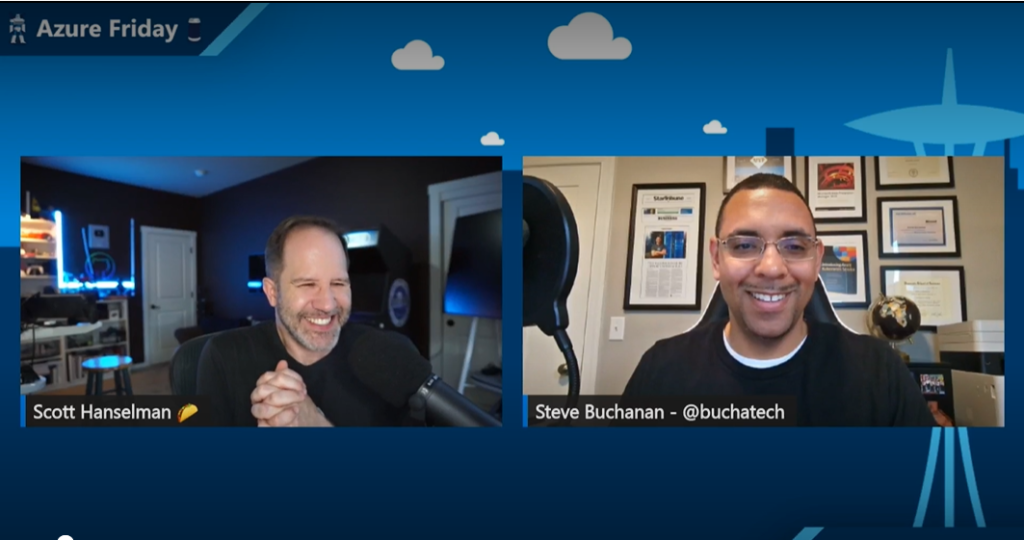
Hey everyone, today I’m super excited to tell you about a recent episode of Azure Friday that I was lucky enough to be a guest on.
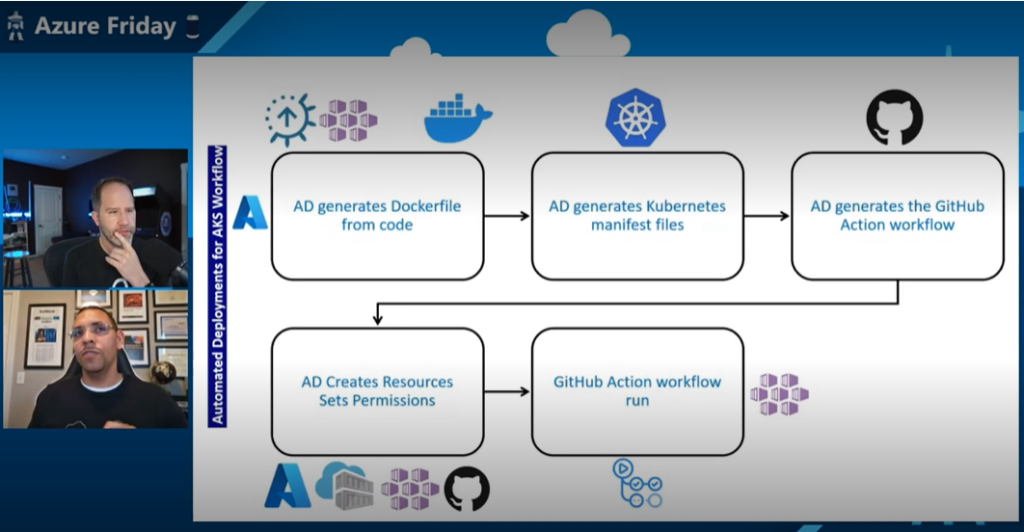
Azure Friday is a weekly video series hosted by the legendary Scott Hanselman, where he interviews experts and developers on various Azure-related topics. In this episode, we talked about Automated Deployments for AKS, a new feature that makes it super easy to deploy your apps to Azure Kubernetes Service.
If you’re not familiar with AKS, it’s a managed Kubernetes service that lets you run containerized applications on Azure without having to worry about the complexity of managing the cluster. It’s a great way to scale your apps and take advantage of the benefits of Kubernetes, such as high availability, load balancing, and service discovery.
But what if you’re not familiar with containers or Kubernetes? What if you just have some code in a GitHub repo and you want to run it on AKS? That’s where Automated Deployments for AKS come in. It’s a feature that simplifies the Kubernetes development process by taking care of the tedious work of containerization for you. It uses a tool called Draft, which automatically detects the language and framework of your app, creates a Dockerfile and a Helm chart for you, builds and pushes the image to Azure Container Registry, and deploys the app to AKS. All with just a few clicks in the Azure Portal.
Sounds amazing, right? Well, that’s what I wanted to show Scott in this episode. I had an app hosted in a GitHub repo that I wanted to run on AKS. The app was a simple web app that displayed some data from a database. I had already created a few resources in Azure, such as a resource group, an Azure Container Registry, and an AKS cluster. All I needed to do was use Automated Deployments for AKS to get this app from code to running on a cluster.
So how did it go? Well, you’ll have to watch the episode to find out. But spoiler alert: it was super easy and fast. In just a few commands, I went from code to an app running on AKS. Scott was impressed and so was I. We had a great time chatting about how Automated Deployments for AKS works under the hood, some of the benefits and limitations of using it, and how it can help developers get started with containers and Kubernetes.
With Automated Deployments, Microsoft is opening up new avenues for developers to embrace the power of containers and AKS, enabling them to effortlessly build scalable and robust applications.
If you’re interested in learning more about Automated Deployments for AKS, you can check out the documentation here: https://learn.microsoft.com/en-us/azure/aks/automated-deployments. It’s available today in public preview, so you can try it out for yourself and see how easy it is to run your apps on AKS.
That’s all for today. I hope you enjoy this episode of Azure Friday as much as I did. It was an honor and a pleasure to be a guest on Scott’s show and talk about one of my favorite topics: Azure Kubernetes Service. If you have any questions or feedback, feel free to leave a comment or reach out to me on Twitter at @Buchatech. Thanks for reading and happy coding!
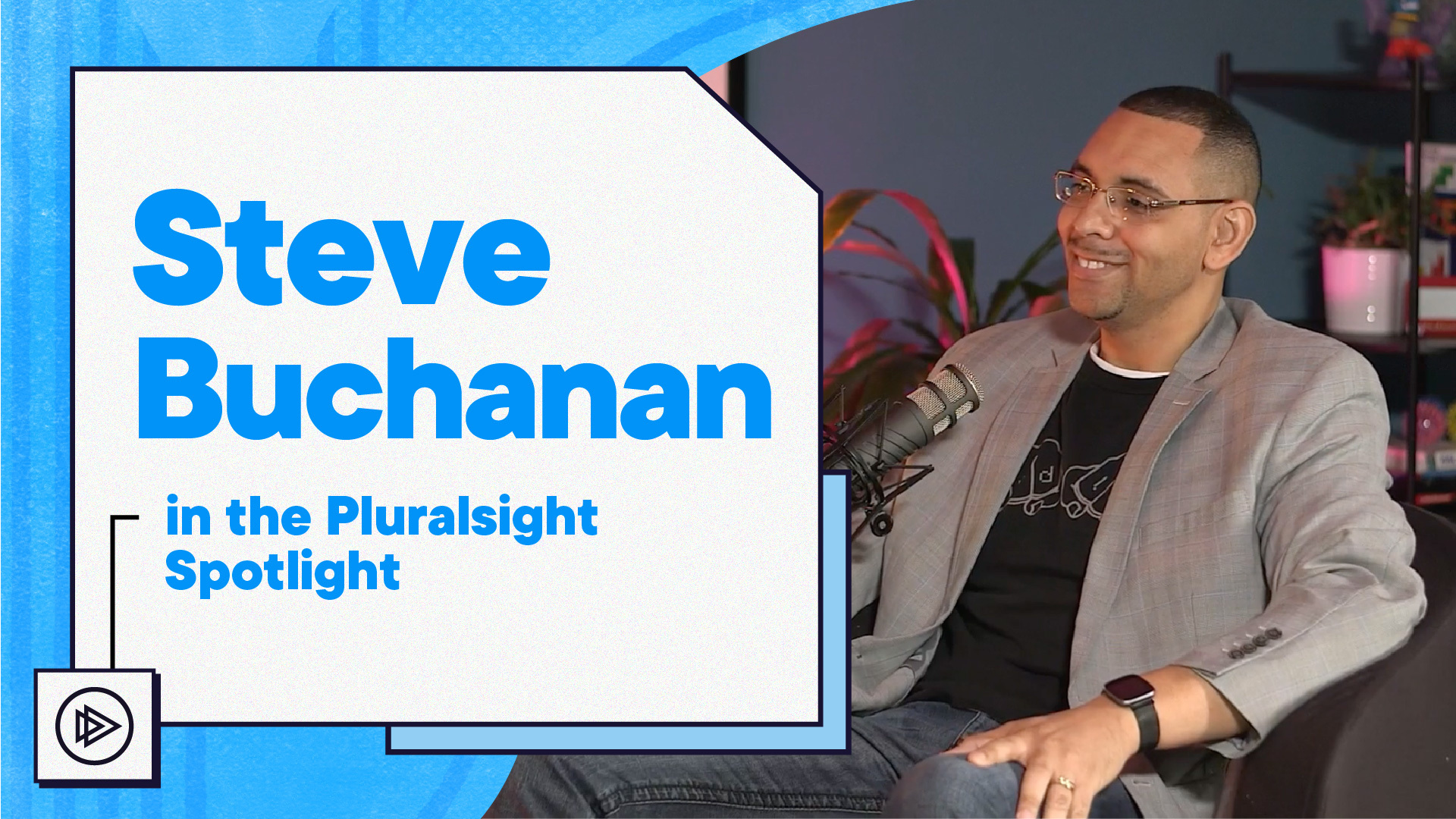
I recently had the honor to film an episode of Spotlight at the Pluralsight headquarters.
It was an awesome experience and fun talking with Adam Gunn.
In the episode, we talked about:
Tech skills you need to master for the future, including hybrid and multi-cloud, Kubernetes, AI, and more. We also touched on how I landed in tech and how to overcome impostor syndrome to become a successful professional.
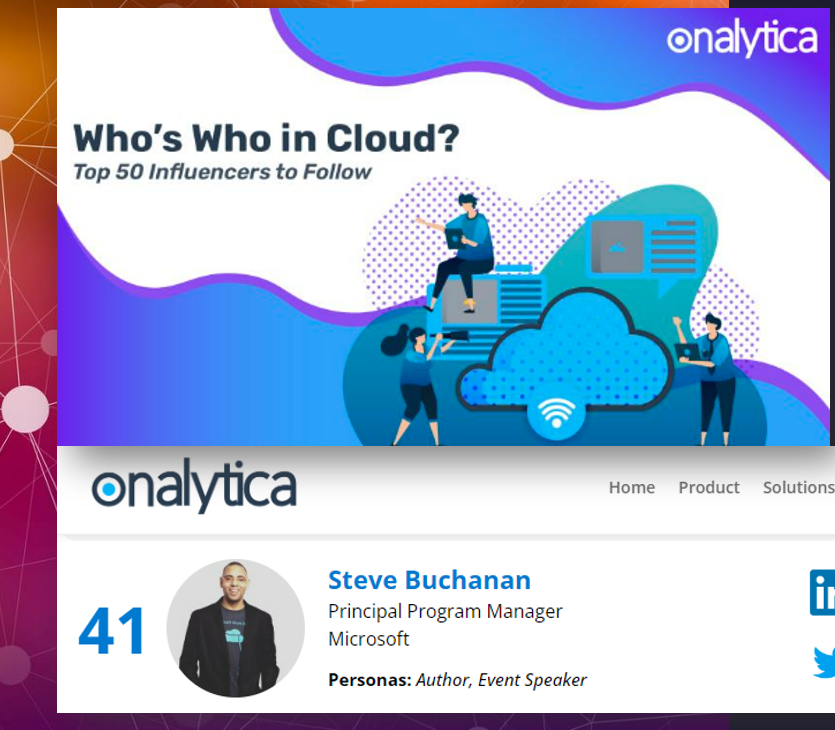
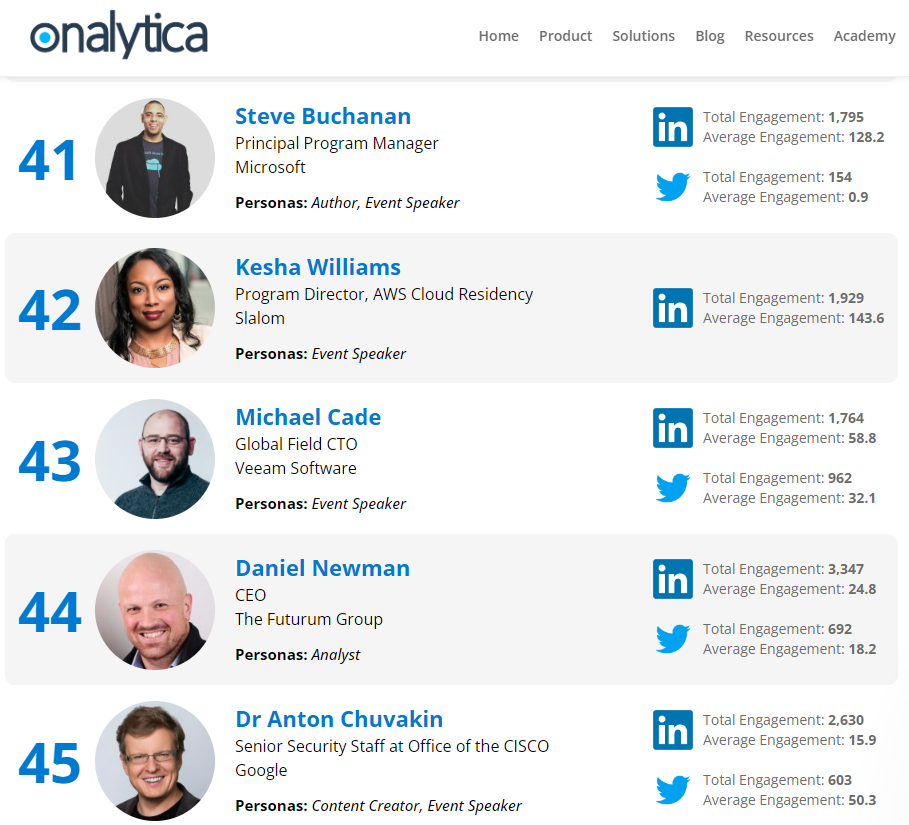
Onalytica just released their 2023 Who’s Who in Cloud? Top 50 Report. I am humbled and honored to be included in this list of 50 incredible people and thought leaders in the cloud space!
The report features the Top 50 thought leaders and influencers who have driven the most engagement around the cloud on LinkedIn and Twitter over the past six months. The thought leaders in the report are leading the charge when it comes to cloud computing, through our speaking, books, articles, as well as video and or audio content.
Onalytica has been creating influencer lists for the last 10+ years. These influencer lists span industries such as tech, finance, healthcare, education, and many more.
These Who’s Who reports are created using the Onalytica platform which has a curated database of over 1 million influencers. Out of 1 million influencers, it is not easy to land in the top 50. I landed at #41 on the list!
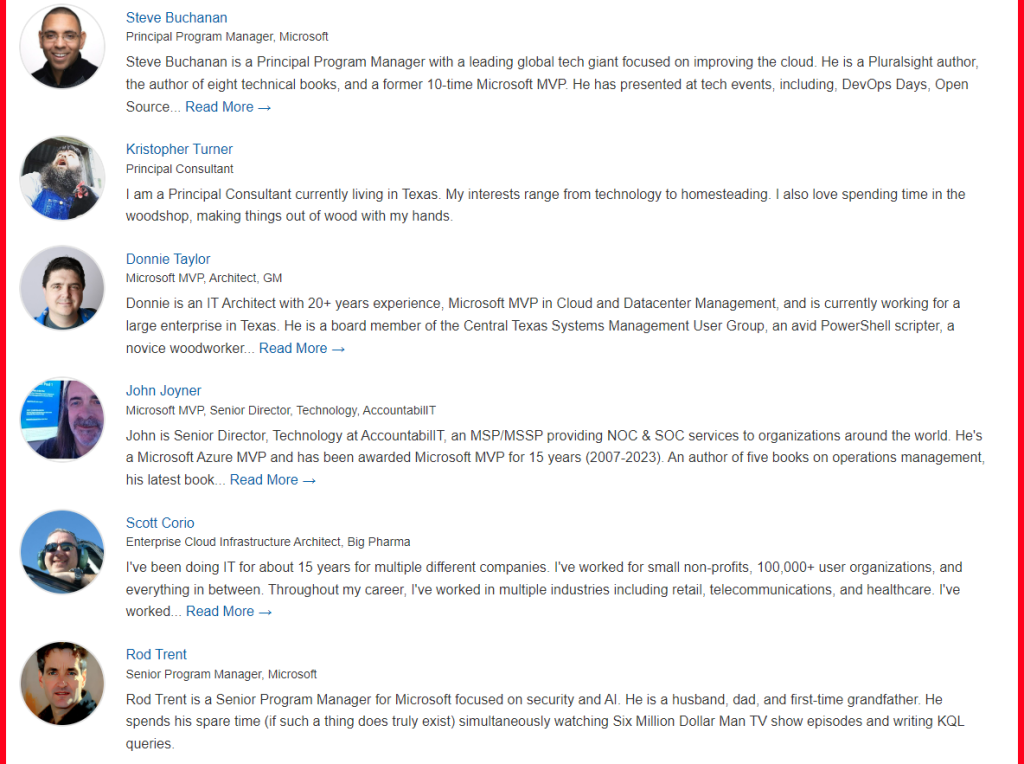
I want to give a special shout-out to my fellow Microsoft colleagues on the report including:
Onalytica Provides consultancy-led Influencer Marketing software for industry & B2B marketing and communications professionals looking to identify and engage with social media influencers.
Onalytica’s software enables brands to implement and run structured Influencer Relationship Management programs with large Influencer Communities to improve brand awareness, perception and demand generation.
Founded in 2009, and backed by Bebo founders Michael and Paul Birch, Onalytica have created over 5,000 B2B and B2C Influencer programs for global clients which include Microsoft, Google, IBM, Coca-Cola, Amazon, Centrica and British Airways.
Onalytica are striving for this report to be a One-Stop Shop for the Movers & Shakers of the industry so any feedback to further improve the lists is always gratefully received.
I was a guest on a very popular cloud podcast. This is one of the longest-running cloud podcasts around starting in 2011. It is the Cloudcast Podcast.
I was on episode #714 titled “Combining Kubernetes Community and Careers”. In this episode, I had a great time chatting with Aaron Delp about my journey in the Kubernetes community, building a personal brand through education and sharing, content creation, and maintaining a healthy work-life balance.
Here are the show notes breaking down the topics:
Topic 1 – Today we are going to be talking about careers and Kubernetes. Steve, welcome to the show! You have a super fascinating career journey, can you give everyone a quick introduction?
Topic 2 – I heard you over on the Kubernetes Unpacked podcast. First off, it’s hard to keep up with everything you are doing in the community these days. What is your current focus and passion? Have you reached 20 courses on Pluralsight yet?!
Topic 3 – How do you balance the day job (Program Manager for AKS) and the nights and weekends (PluralSight courses, blogging, podcasts, etc.)? Besides learning and sharing, what benefits are you seeing with this approach?
Topic 4 – I believe your journey parallels our journey here. We started the podcast to learn and give back to the community. Prior to the podcast, blogging was the big thing (we are completely aging ourselves I know) but I think it is safe to say blogging isn’t a primary source today. How would you recommend folks new to the industry get started sharing their journey? Where is the most “bang for your buck” these days?
Topic 5 – Let’s talk about Kubernetes and specifically AKS, what are customers finding new and interesting? What are the leading solutions and integrations you see combined with AKS? How do you create a “stack” in AKS (GitHub Actions, Azure Container Registry, etc.)
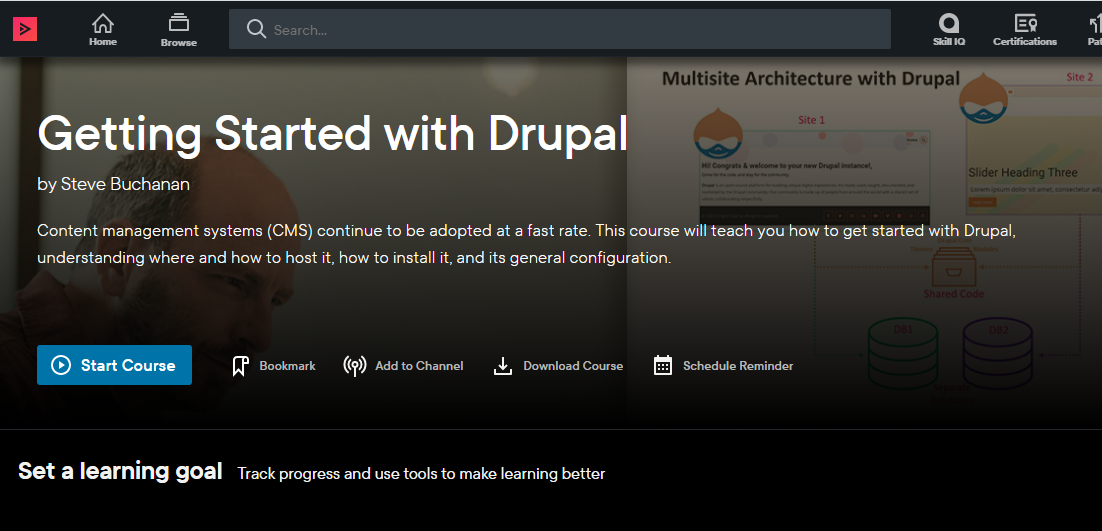
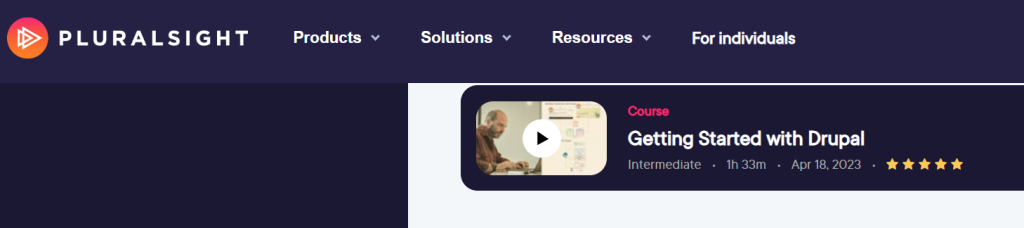
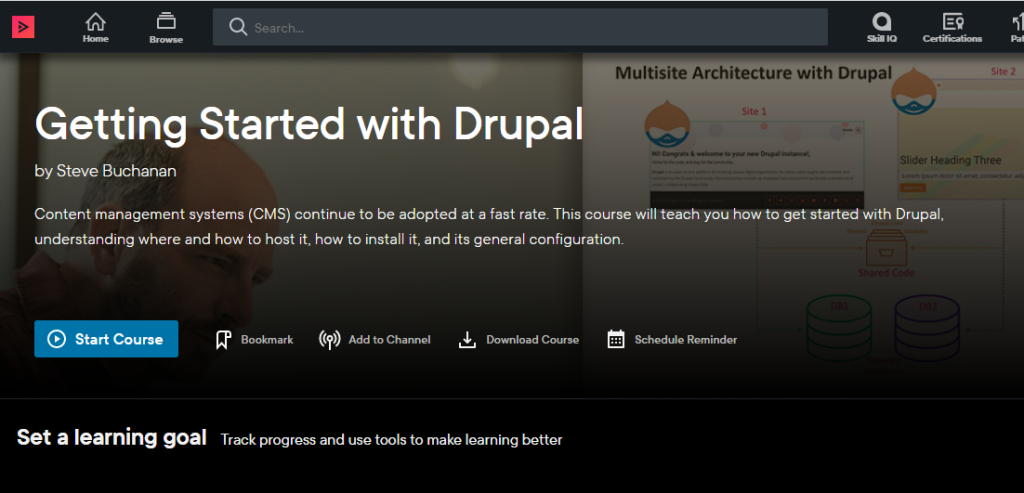
Last week I published a new course on Pluralsight. This one is a milestone as it marks my 20th course! This course is titled “Getting Started with Drupal“. Startups, enterprises and more continue to adopt content management systems at a fast rate with Drupal being one of the top Content Management Systems used.
Drupal is one of the top choices for startups and enterprises. It is used for many uses from web apps, marketing tools, e-commerce, and even a company’s main website.
I have been working with Drupal and other content management systems in various aspects for over sixteen years. I have used Drupal for my own websites, hosted it for businesses, administered Drupal sites for customers, Drupal development for customers, and even managed the development of Drupal modules. With all of my history with Drupal, I was excited when the opportunity came up to build a course about it.
This course is ideal for bloggers, entrepreneurs, Product Managers, Marketing managers, Marketing executives, Marketing consultants, Marketing employees, web developers, project managers, business analysts, web designers, graphic designers, UX/UI, designers, and anyone interested in content management systems specifically Drupal.
This course will take you from little to no knowledge of Drupal to a place where you can be confident enough to get started. Whether you want to create a personal blog, a business website, or an online store, Drupal is a skill you should have and this course has you covered.
In this course,Getting Started with Drupal, you’ll learn its many uses, features, tech stack, and you’ll also explore hosting it. Next, you’ll learn how to install it. Finally, you’ll discover its user interface and general configuration.
Some of the major topics that are covered in this course include:
Core Drupal knowledge.
About its tech stack such as web servers like Apache, language PHP, Composer, Drush, & databases like MySQL & how these work with Drupal.
How to acquire a domain & hosting for Drupal.
& Finally, how to install and configure Drupal.
By the end of this course, you will have a better understanding of content management systems, & Drupal itself, its uses, features, & tech stack. As well as knowledge of how to get a domain name, hosting, and install Drupal along with a tour of its interface and general configuration.
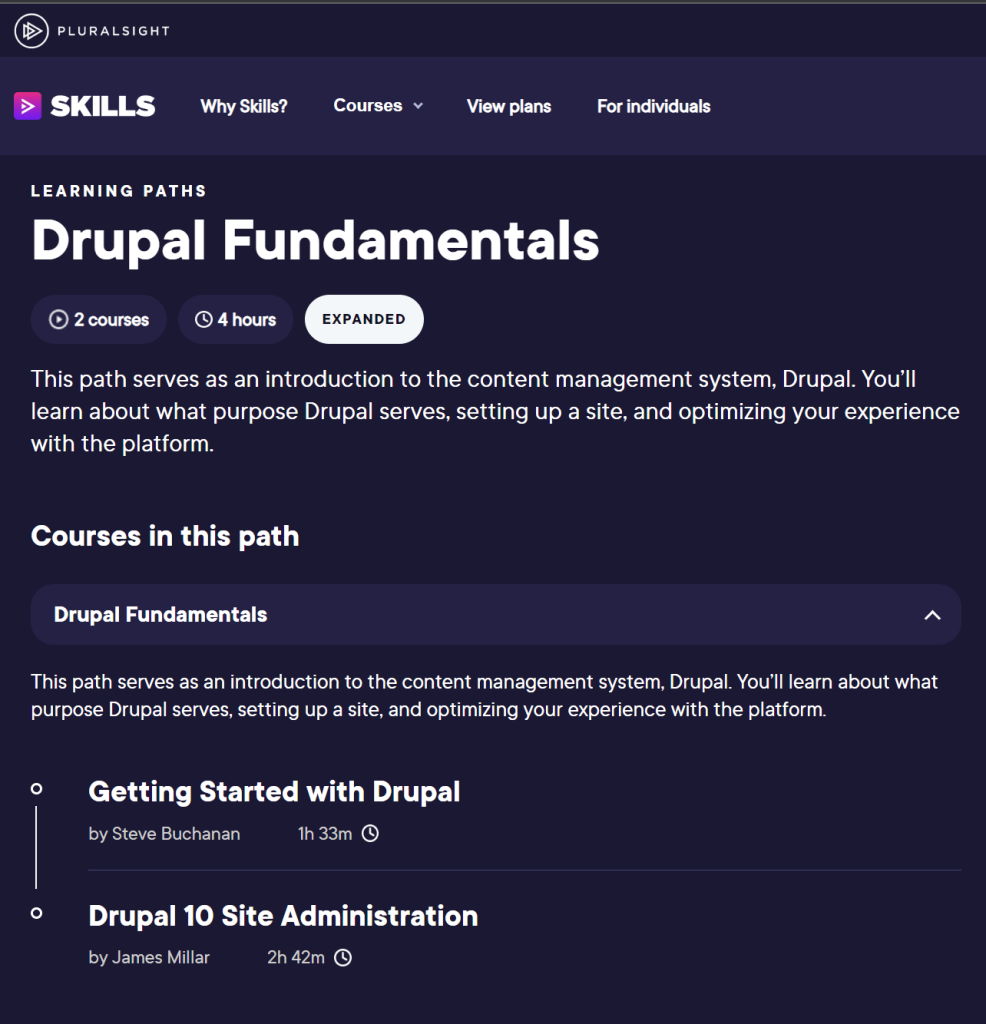
This course is the 1st in a Drupal Path named “Drupal Fundamentals” on Pluralsight. The 2nd course in the path is “Drupal 10 Site Administration”. You can check out the full path here:
I hope you find value in this new Getting Started with Drupal course. Be sure to follow my profile on Pluralsight so you will be notified as I release new courses!
Here is the link to my Pluralsight profile to follow me:
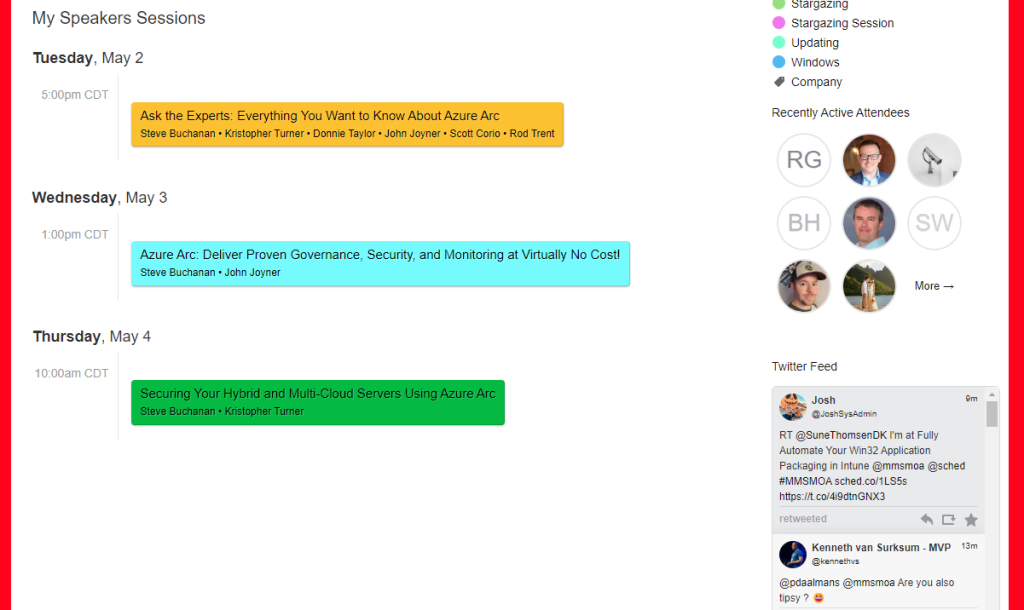
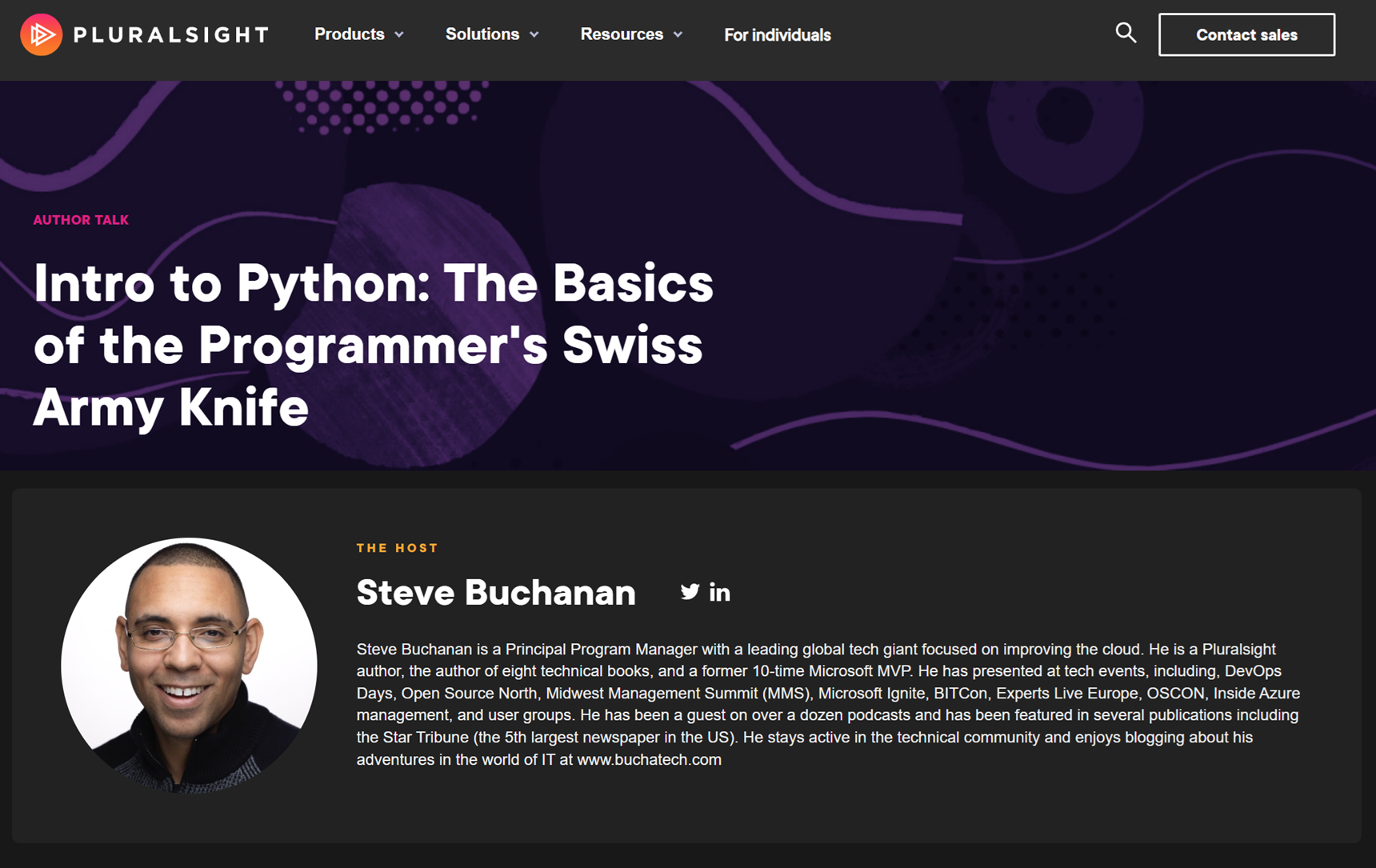
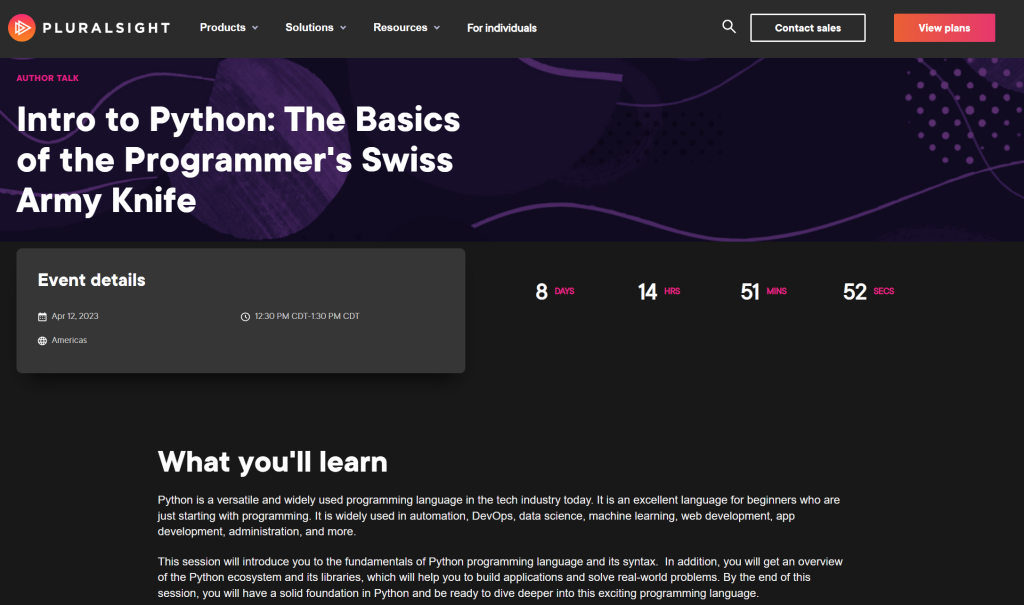
Coming up soon I will be giving my second Pluralsight Author Talk. This live session will be an Intro to Python. I will cover the fundamentals of the Python language and its syntax. In addition, I will give an overview of the Python ecosystem and its libraries. I also plan to touch on how it is used in automation, DevOps, data science, machine learning, web development, app development, administration, and more.
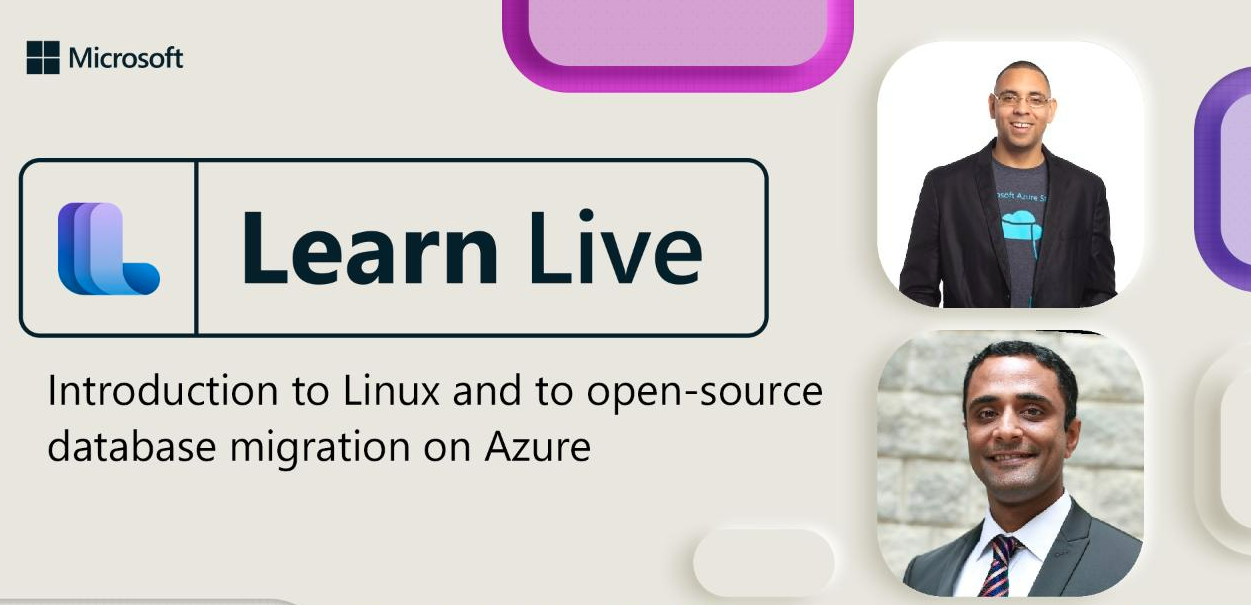
I am excited to be a part of another Learn Live series. This study hall is all about Azure core IaaS. In this series, we will walk through how to build infrastructure solutions with Azure IaaS services and products. This twenty two-part weekly series will answer your questions live and walk through how to build infrastructure solutions with Azure IaaS services and products.
In the study hall sessions, together with you live, we will work through Microsoft Learn modules focused on various IaaS scenarios in Azure. You can see all of the sessions in this study hall series here:
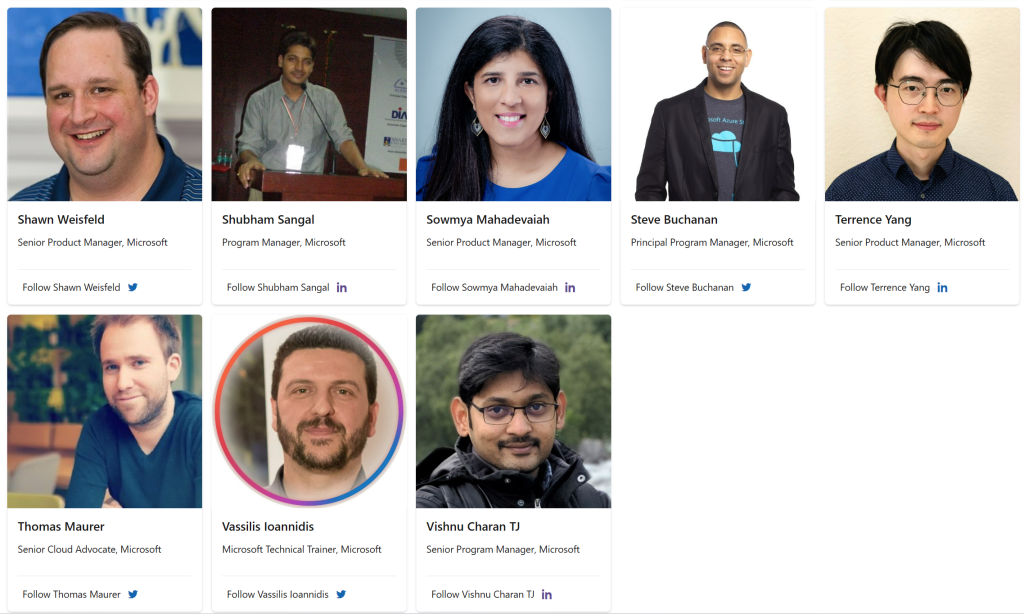
The series has a solid lineup of speakers from Microsoft and the community! And I will be co-delivering a session focused on Linux on Azure and the 2nd topic will be on open-source database migration on Azure.
Here is a complete description of my session:
Discover the unique benefits of running Linux on Azure, and how to run Linux-based applications and workloads in the cloud with Azure. Then you’ll learn about the issues and considerations for migrating on-premises open-source databases to Azure, the services Azure provides to help you migrate your databases, and how to plan a migration. In this episode, you will:
Differentiate between Linux on Azure infrastructure as a service (IaaS) and platform as a service (PaaS) computing, and the value of each
Describe Azure tools and services that bring additional value to Linux workloads
Explain the components of Linux virtual infrastructure in Azure, and the role of Microsoft in supporting different Linux distributions
Describe the features and services available in Azure for hosting an open-source database
Explain the key considerations for implementing a migration project
Describe different approaches that you can take for migrating databases
This event will be on March 30, 2023, at 10:00AM – 11:30AM (Pacific).
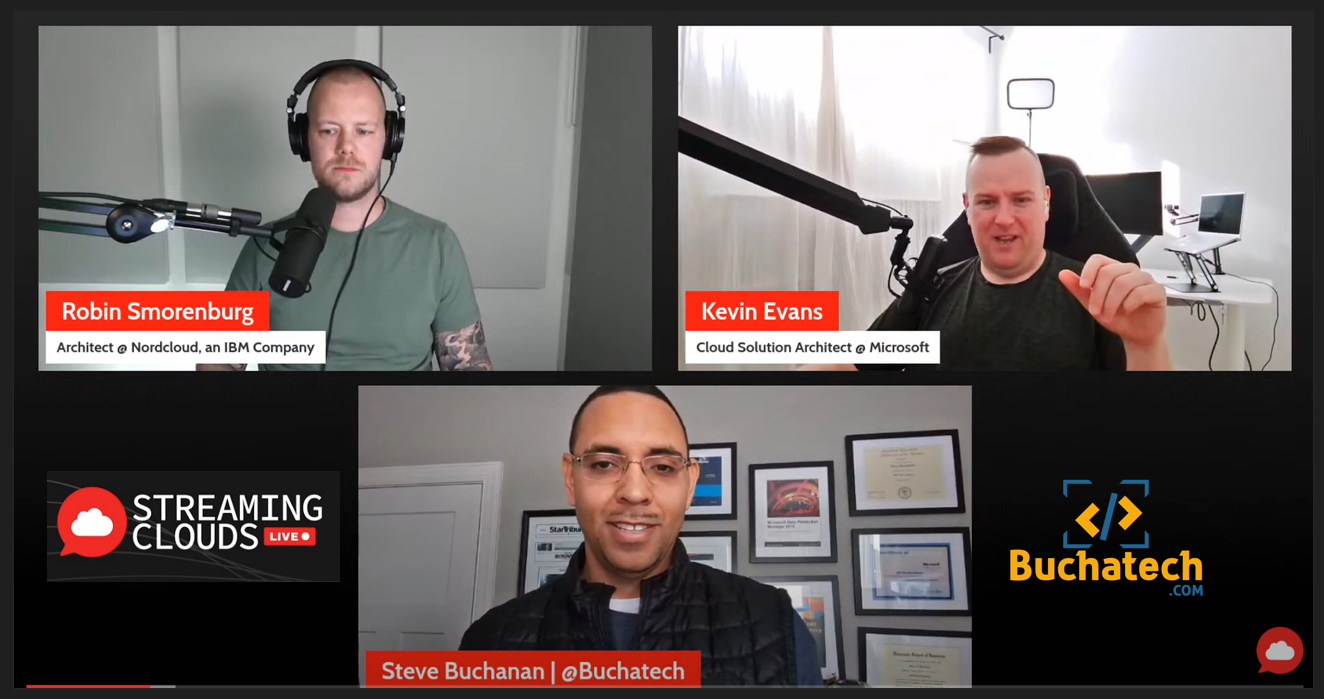
I recently was a guest on StreamingClouds. StreamingClouds is a multicloud live stream by Microsoft CSA Kevin Evans and Microsoft MVP Robin Smorenburg. With topics ranging from cloud native to hybrid, security, architecture, strategy, careers, personal development, and more.
StreamingClouds is more than just a live stream podcast its also a diverse community where the members can all learn from each other.
To highlight what we covered in the episode, we discussed how to effectively use Microsoft’s AKS documentation, reference architectures, scripts, and tools for your AKS project. We also touched on GitOps, Fleet Management, Platform Engineering and more.
Here is a full description of what we covered on the episode: Starting an AKS project soon or in the middle of one and lost? Have you tried to use the Microsoft AKS documentation, reference architectures, scripts, and tools but feel stuck on what to use and when to use it? Let’s talk about it and get you the guidance you need. There is a formula and framework to using these AKS artifacts from Microsoft.
In 2022 I wrote a couple of blog posts that give guidance on how to utilize the Microsoft AKS artifacts and tools. In these blog posts I baked in experience from my days delivering AKS projects to Fortune 500 enterprises. We thought it would be a good idea to dive into the content from these live on the podcast talking through these topics to help listeners who are embarking on an AKS journey. Here aforementioned blog posts for reference:
Architecture Design: Baseline architecture for an Azure Kubernetes Service (AKS) cluster AKS Secure Baseline with Private Cluster AKS baseline for multi-region clusters AKS regulated cluster for PCI Advanced Azure Kubernetes Service (AKS) microservices architecture
Deployment: AKS landing zone accelerator AKS Construction Helper AKS Baseline Automation Azure Draft for AKS
Operation: Operations management considerations for Azure Kubernetes Service Azure Kubernetes Services (AKS) day-2 operations guide