Protecting Server 2012 VMs on Server 2008 R2 Hyper-V go into Saved State

Problem: A buddy of mine recently ran into an issue were a 2008R2 Hyper-V host was running Server 2012 virtual machines. SCDPM 2012 SP1 was being used to back up all the virtual machines. Some of the virtual machines running Server 2012 would go into a saved state during the backup process. With virtual machine … Read more

Deduplication for Microsoft DPM using Crunch

With Microsoft DPM 2012 RTM and SP1 protecting deduplicated data on Windows Server 2012 volumes is possible but there is no deduplication on the DPM storagepool. This is a feature that has been needed and requested in the community for some time. DPM administrators have wanted a way to shrink the storage footprint for their … Read more

New System Center book & SC troubleshooting tool

This is an exciting week for System Center. First there is a new tool released by Microsoft called System Center 2012 SP1 Configuration Analyzer (SCCA). The System Center 2012 SP1 Configuration Analyzer works these System Center products in the stack:   Operations Manager Virtual Machine Manager (VMM) Service Manager Orchestrator (plus Service Provider Foundation) Configuration … Read more

MCSE: Private Cloud Certification

I am happy to announce that today I passed the final exam to obtain the MCSE: Private Cloud certification.   I was able to upgrade from the MCITP: Server Administrator requiring me to only pass two exams. Out of the 70-246 Private Cloud Monitoring and Operations with System Center 2012 and 70-247 Private Cloud Configuration … Read more

SCOM failed to open service control manager

Problem: When pushing a SCOM agent installs or updates you get this error: The Operations Manager Server failed to open service control manager on computer SERVERNAME. Therefore, the Server cannot complete configuration of agent on the computer. Operation: Agent Install Install account: NT AUTHORITY\SYSTEM Error Code: 80070005 Error Description: (null) Notice in the screenshot the … Read more

Tech Review on Microsoft System Center Virtual Machine Manager 2012 Cookbook

I have been staying busy. I recently finished technical review of a new book titled Microsoft System Center Virtual Machine Manager 2012 Cookbook. Here is what the book will look like.   Here is an overview of what you can expect from the book:   How to use VMM Architecture and plan for a real … Read more

Use System Center Orchestrator to Backup a Hosted WordPress

I recently had some issues with my hosted WordPress (this blog) being hacked. So I wanted to start backing up a local copy and I did not want to do this all manually. A friend of mine (a fellow MVP Islam) also needed something like this for his blog because recently the hosting provider of his WordPress site deleted the entire thing!

WordPress on the backend consists of a database and a folder with the actual site files in it. I needed a way to back up the database and the site files. My WordPress database runs on MySQL. I needed a way to do a MySQL Dump of the database. Then the dump needed to be placed into a specific folder before downloading it. So to sum this up I need to somehow backup the MySQL database for my site, place this somewhere so it can be downloaded, delete the previous database file so that disk space is not being wasted before future dumps, then zip my blog files and download both the zip and MySQL Dump.

I was excited about this project because when I set out to accomplish I knew I would look to System Center first to help me out. Just my luck I am able to accomplish everything I need with System Center Orchestrator (SCORCH).

Here is a summary of how SCORCH will accomplish the task:

  • SCORCH will connect to the web server via SSH
  • SCORCH will issue a command that will remove any previous MySQL backups of my database
  • SCORCH will issue a MySQL command to back up the database to a specific folder
  • SCORCH will check for a previous .zip of my blog files and remove it if it is there
  • SCORCH will create a new .zip of my website files
  • SCORCH will connect to the web server via FTP and download the database and download the .zip of my blog

Before doing this you need a couple of things setup on your web server and depending on your host some of these options may not be available. Here is what you need:

  • You need a static IP so that you can access SSH remotely (Some hosts will give you a FQDN to connect to instead)
  • Then you need SSH turned on and configured (Make sure this is secured.)
  • Create a folder for your MySQL database backups
  • You need an FTP account setup to access your MySQL backups and the website files remotely

Ok now let’s jump into the actual setup of this in SCORCH.

Go download and deploy the FTP Integration Pack for SCORCH.

Here is the link: http://technet.microsoft.com/en-us/library/hh295851.aspx

Register the integration pack and deploy it to your Runbook server. Once you have the FTP integration pack in your SCORCH go to the SCORCH Runbook designer and setup the FTP account for your host. This can be found under Options>>FTP.
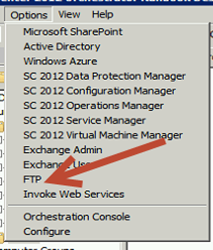
clip_image001

You just need to click Add and then input your FTP settings. Click OK when done and your FTP connection will be listed under Configurations. Click Finish.
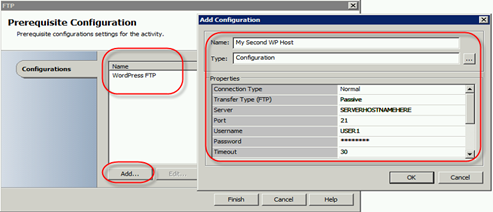
clip_image002

The next thing you need to do is create the Runbook. You will be using the System (Run SSH Command) and FTP (Download File) Activities.
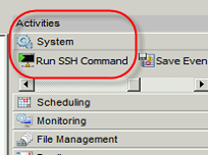
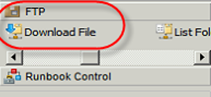
clip_image003

clip_image004

Go ahead and setup your Runbook like so:
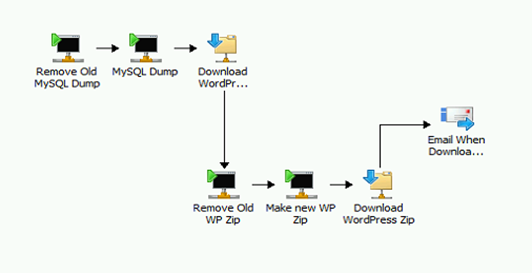
clip_image005

Read more

Deploy DPM Remote Administration console via SCCM

In this post I am going to explain the process of deploying the DPM Remote Administration Console to IT admin computers via System Center Configuration Manager 2012. Following are the steps you will need to take to make this happen.

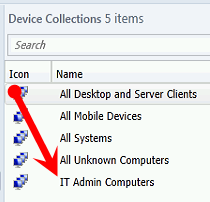
You will need somewhere to group your IT admin computers so that you can target the DPM Remote Administration console to them. Create an IT Admin Computers device collection in SCCM 12. This is what we will use to group the IT admin computers.

clip_image001

Now we need to copy the contents from the DPM media onto your distribution point share. This will be the CCX86 and SCDPM folders.

NOTE: In my lab for this post I copied these to C:\App Deployments.

clip_image002

OTHER INFO: As of right now you need to copy all the contents. I don’t know of the specific files that make up the remote administration console. If I track this down later I will update this blog post. If you need to save space you can copy one or the other folder and use it. CCX86 is for 32Bit computers and SCDPM is for 64Bit computers. If you know you will only deploy to 64Bit computers then get the SCDPM folder only.

The next step is to go and create a package for the DPM Remote Administration console.

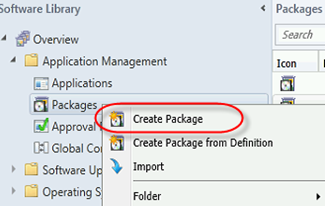
In the Config Man console go to \Software Library\Overview\Application Management\Packages and create the new package.

clip_image003

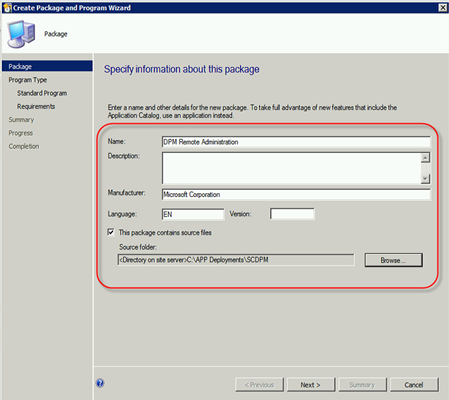
The create package wizard will come up. Go ahead and complete the highlighted fields in the following screenshot and click next.

NOTE: Remember for this post in my lab I copied the DPM software from the media to C:\App Deployments. This is the directory I am setting as my Source folder for this package. Your source folder path will be different.

clip_image004

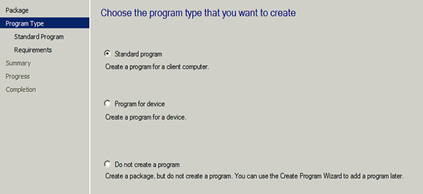
Chose standard program and click next.

clip_image005

Here is where you need to put in the correct command line syntax to make sure it installs the DPM Remote Administration console vs. trying to install the full DPM product. Here is the syntax you will need to put in the Command line: field. See the following screenshot.

Read more