Today Pierre Roman (@wiredcanuck) Senior Cloud Advocate of Microsoft & myself (@buchatech) streamed “Introduction to Azure Arc enabled Kubernetes” on Learn Live. Here is what we covered in this session:
In this session, showed you how Azure Arc enabled Kubernetes clusters can help customers like Contoso to optimize and simplify their operations. Here are the Learning objectives we covered:
Describe Kubernetes, Azure Arc, and Azure Arc-enabled Kubernetes.
Connect Kubernetes clusters to Azure Arc.
Manage Azure Arc enabled Kubernetes clusters by using GitOps.
Integrate Azure Arc enabled Kubernetes cluster with Azure services like Azure Monitor and Azure Policy.
If you missed it don’t worry. 🙂 You can watch the playback on the Microsoft Developer YouTube channel here:
You can check out more Learn Live episodes on the:
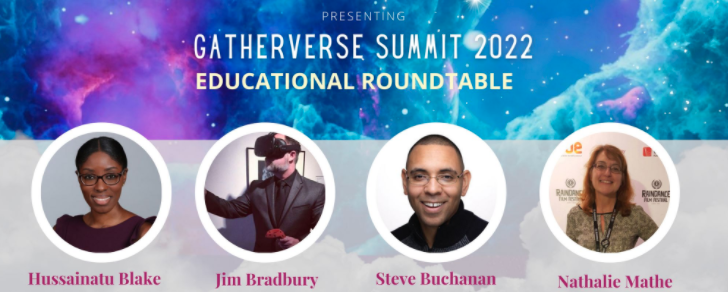
GatherVerse is a new conference about the MetaVerse. GatherVerse is the creation of entrepreneur & tech leader Christopher Lafayette. The GatherVerse is a global gathering discussing humanity first standards of education, safety, privacy, wellness, equality, community development and accessibility in the next steps of the metaverse. Here is the GatherVerse website: www.gatherversesummit.com
I will be a part of a panel discussing EdTech’s role in the Metaverse. This panel will be on day 2 – February 23rd, 2022 @ 2:00pm pst – 2:48pm pst
I will join a great panel of esteemed tech professionals. On the panel, I will give my personal point of view of how companies and technologies such as Accenture (who recently bought of 60k Oculus headsets), Microsoft, FlipGrid, TakeLessons, LinkedIn Learning, Roblox, Pluralsight, and more fit into the Metaverse.
This event is free. Here are links to learn more and sign up:
This year was another abnormal year with ups and downs for many. Salute to everyone that kept pushing through any and all hardships you experienced. For me, my focus continued to be family and seizing all presented opportunities while blocking out as much unnecessary noise as possible.
Highlights:
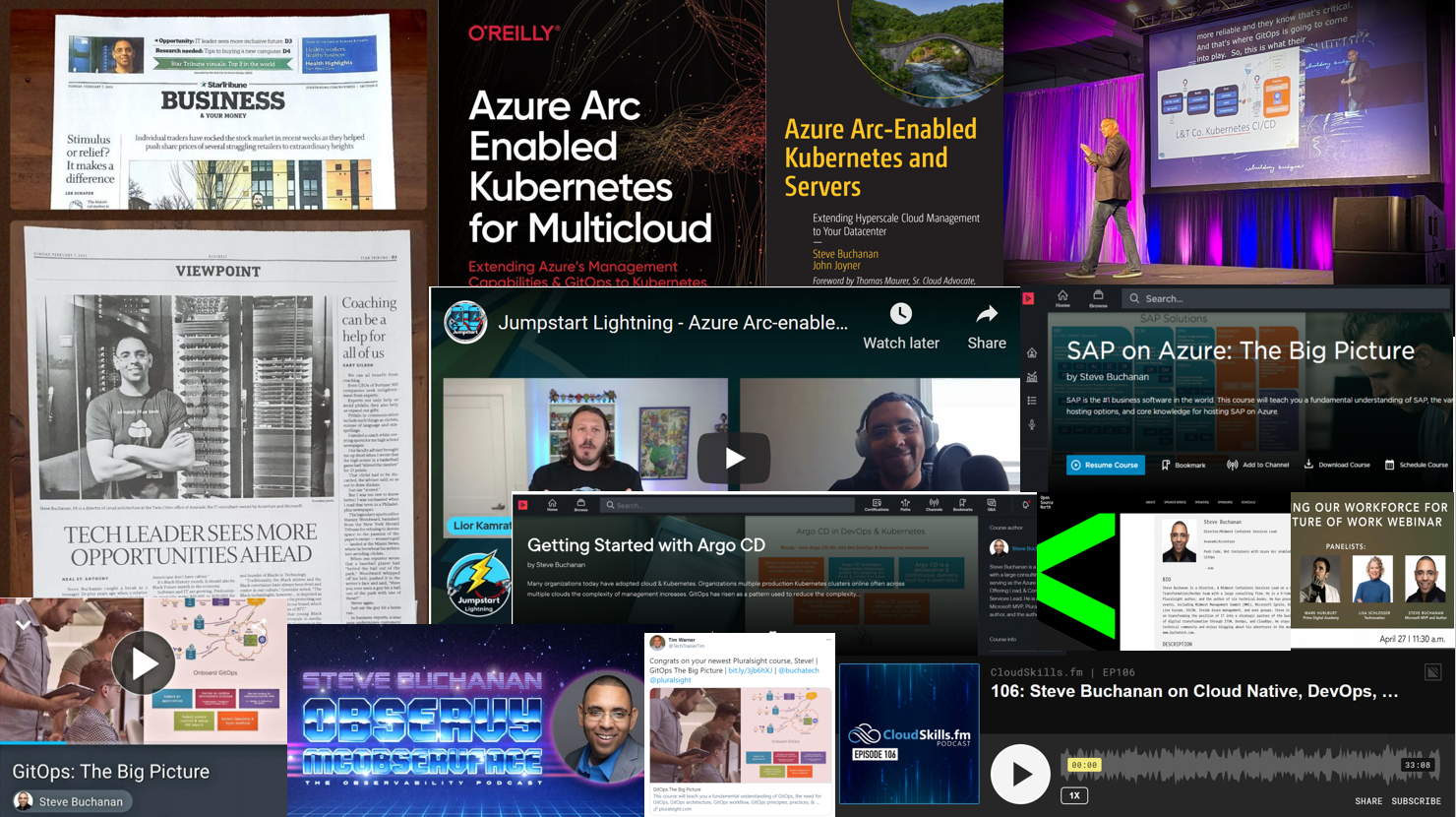
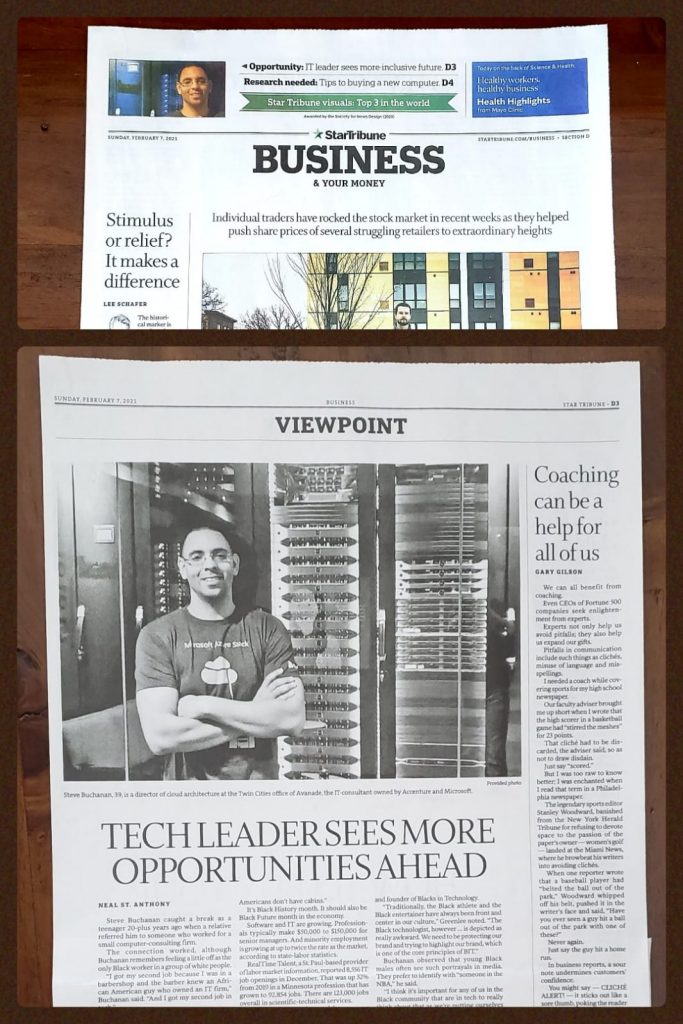
I consider 2021 a spectacular year with several milestones and firsts for me. This year kicked off with me being featured in the Star Tribune (the 5th largest newspaper in the United States) in Superbowl Sunday’s paper! Other major highlights included being renewed as a Microsoft MVP for the 10th year, being promoted to an Azure Platform Offering Lead at work, developing 6 new courses for Pluralsight, publishing my 7th and 8th book one of them being my 1st book with O’Reilly, appearing on 5 podcasts/webinars, & speaking at 7 conferences/user groups of them being DevOpsDays MPLS! I also continued my virtual world tour speaking at events in Africa and even Jamaica!
2020 was an extraordinarily tough year with many downs for so many people all over the world. For me losing 3 people in a week and a half (not to COVID) along with all the funerals to follow was rough. Also, the injustice in my home city with the murder of George Floyd and unrest was unbelievable but not a surprise with injustice going un-noticed for so long. It was amazing to see the world wake up and acknowledge what has been happening for so long.
In spite of all of the bad stuff from 2020, there was a tremendous amount of good stuff happening and progress. I believe there is always an opportunity in the middle of chaos. To see the opportunity it is needed to take a step back, slow down, and analyze the board. In this post, I am going to recap the positives from this year as I have done in the past few years.
Let me start off with the fact that I was renewed for my 9th year as a Microsoft MVP! I was re-awarded in the Azure category for the 3rd year. I never take the Microsoft MVP award for granted as it is never guaranteed. I am honored to once again be among such a talented group of people across the globe!
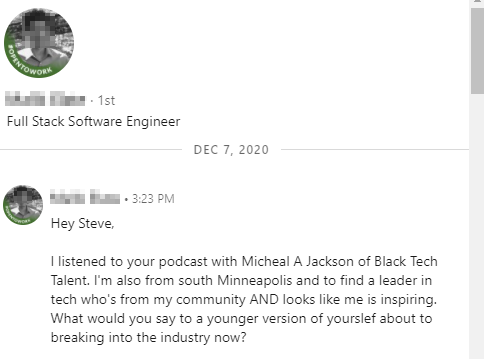
The next thing I want to call out is a message I received from someone from my home city after listening to one of the podcasts I was featured on. In this message this upcoming tech star talked about how he was inspired by the episode and how he can relate to me. This message was inspiring to me as this is a huge part of what I want to do through sharing my story. I hope to see more of it in the future. Here is the message:
Ok, now lets get into the list of activity from 2020!
-Podcasts-
In 2020 I was honored to be featured on 7 podcasts! Some of the podcasts in the US, Europe, and Africa! Here are the podcasts:
Guest on “Lisa at the Edge” Podcast EP13: In the podcast episode Lisa and I talked about: Evolving your career as technology evolves, Transformation of IT dept to Strategic Business Partner, DevOps, Containers 101, Azure Kubernetes Service, Diversity in tech. Episode link here
Was a guest on Tech Talk Wednesday podcast and radio show with Kazeem Adegboyega Topic: Azure Kubernetes Service (AKS) in 30 minutes. Streamed online via Microsoft Teams and aired in Lagos, Nigeria on Lagos State University (LASU) radio (95.7).
Guest on Headinthecloud Heartinthecommunity a community show by Isidora Katanic and Holly Lehman.
-Pluralsight Courses-
In 2020 I developed 5 new courses for Pluralsight bringing the total to 6! This is an opportunity to continue sharing my knowledge with the world through Pluralsight’s global platform. You can find my Pluralsight Author page here:
One more highlight from my journey with Pluralsight in 2020 is that my AZ-900 course broke into the top 100 courses on Pluralsight! This actually stayed here for multiple months!
I am excited about the potential with Pluralsight for 2021!
-Speaking-
In 2020 I presented at some conferences and user groups. Here is where I presented in 2020:
Inside Azure Management event conference
I was a speaker during the “Inside Azure Management Summit” on 7/23/2020. This was a free community event. It featured Microsoft cloud experts from the authoring team of “Inside Azure Management” book, Microsoft MVP’s, and community experts from around the world. I presented on Azure Policy! My session can be watched here:
I was one of the experts in several Ask the Expert sessions during Microsoft Ignite 2020! Sessions included PowerShell on Azure, Kubernetes on Azure, and Azure Migrations.
I was featured on AzureCrazy.com in an article! In the Interview we discuss being a #Microsoft MVP, getting certified in #Azure, the positive impact #PowerShell can have on your #ITCareer, getting started with #AKS, #AzureStackHub & more. Check it out here:
I also spent time writing blogs, volunteering with some youth tech programs, as well as shared a couple of scripts on GitHub! Here are some posts about some of these:
2020 was a full year. I already have plans and stuff in the works to make 2021 an exciting year continuing with a focus on Azure, Containers, Kubernetes, IaC, Terraform, GitOps, and more! Please check back here often for new blogs, scripts, and more.
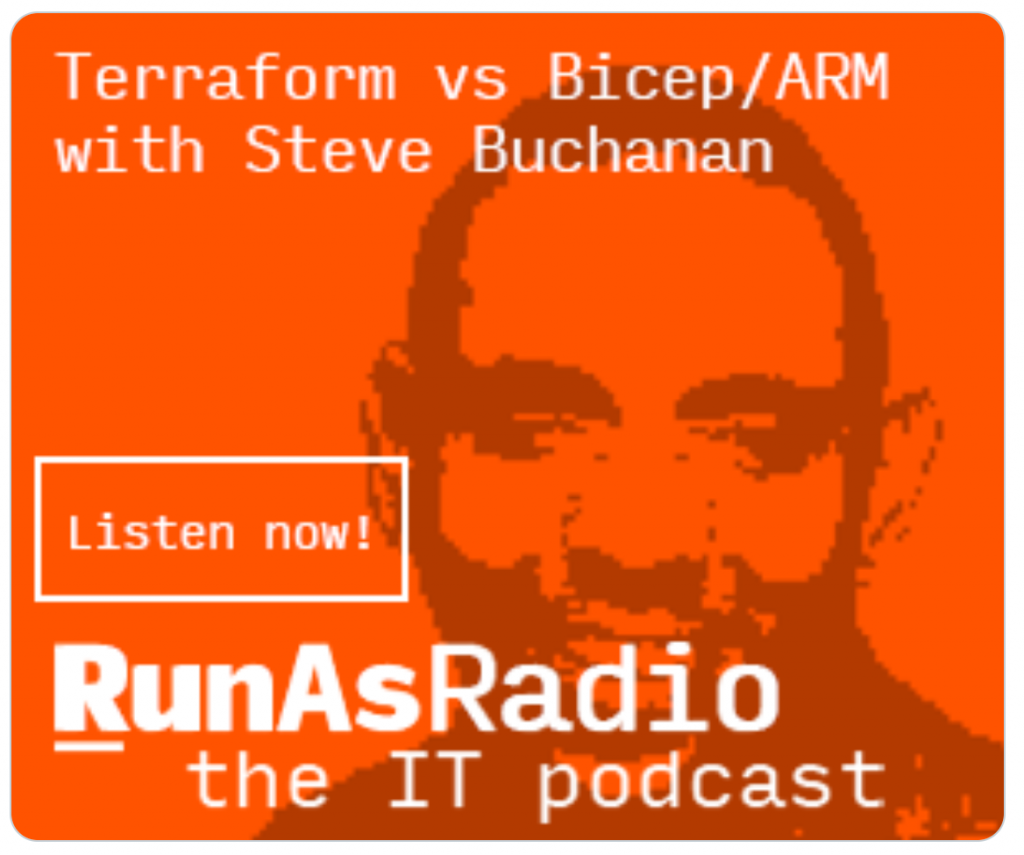
Recently I was a guest on another podcast! This one is RunAsRadio.com.
Had a great time chatting with Richard Campbell about Infrastructure As Code and comparing Terraform with Azure ARM Templates & the new Bicep language. Check it out here:
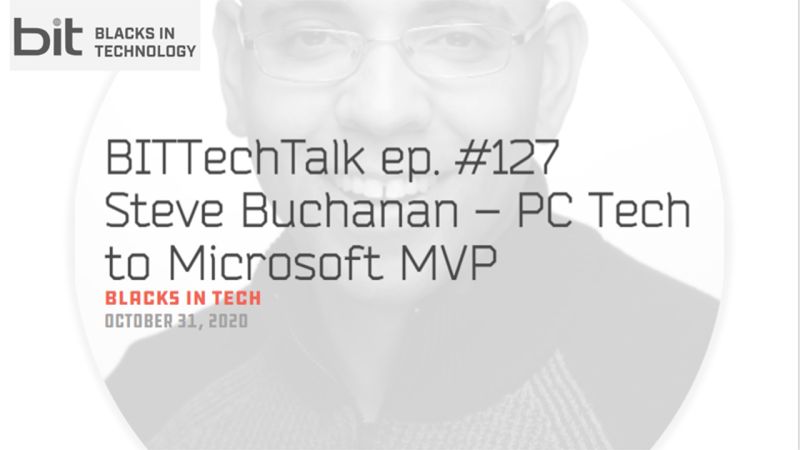
I have been waiting for this one to release! I was a guest on Blacks In Technology ‘s renowned podcast BITTechTalk.
On this episode we talk about; the pros and cons of having a coding background vs infra, what it’s like coming from infrastructure into DevOps, the importance of networking skills in DevOps.
We get into the fact that many folks in the tech industry have to jump ship to get the promotion & better pay, being in consulting vs internal tech, what it’s like being a Microsoft MVP, changing the narrative of blacks in tech, tech salaries and much more!
Check out the podcast episode with the BIT founder Greg Greenlee & me here:
I recently had the honor of being a guest on the “Lisa at the Edge” Podcast. Lisa is a Microsoft Hybrid Cloud Strategist and an influencer in the hybrid cloud community based out of Scotland. She runs a blog and this year she started a popular podcast.
On Lisa’s podcast, she covers Careers in Tech and Microsoft Hybrid Cloud and a range of other topics with experts across the tech community.
This is an episode you don’t want to miss. This was one of the most entertaining podcasts I have been on. It took some interesting turns in regards to topics and very engaging. In the podcast episode Lisa and I talk about:
Evolving your career as technology evolves
Transformation of IT dept to Strategic Business Partner
Recently I was a guest on the “Day Two Cloud” podcast hosted by fellow Microsoft MVP/Pluralsight author Ned Bellavance.
We talked about how native Azure governance & management tools Azure Policy, Tagging, and Blueprints can be used to bring order to your cloud environments. Listen now here:
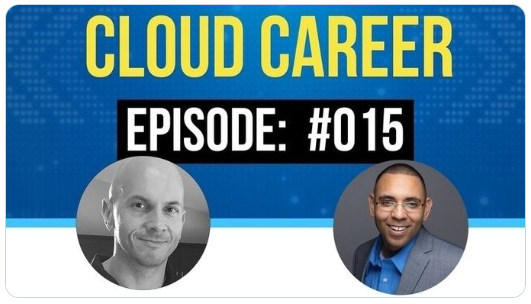
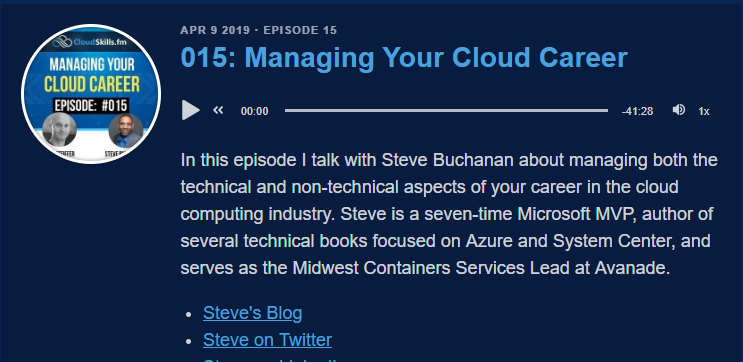
CloudSkills.fm is a podcast by fellow Microsoft MVP Mike Pfeiffer and veteran in the tech space with 5 books under his belt and numerous courses on Pluralsight. The podcast can be found here: cloudskills.fm. Mike is an all around good guy and I was honored to be a featured guest on one of his podcast episodes. The podcast is weekly with technical tips and career advice for people working in the cloud computing industry. The podcast is geared for developers, IT pros, those making move into cloud.
On this episode Mike
and I talked about managing both the technical and non-technical aspects of
your career in the cloud computing industry. We also discuss DevOps stuff
around Docker, Azure Kubernetes Service, Terraform and cloud stuff around Azure
management including my 5 points to success with cloud. You can listen to the
podcast here:
I’m very excited
Opsgility recently published a new Azure course by me titled: “Deploy and
Configure Infrastructure”. This course is part of the AZ 300 certification
learning path for Microsoft Azure Architect Technologies. More about the AZ 300
certification can be found here: https://www.microsoft.com/en-us/learning/exam-az-300.aspx.
The course is over 4 hours of Azure content!
Description of the course:
In the course learn
how to analyze resource utilization and consumption, create and configure
storage accounts, create and configure a VM for Windows and Linux, create
connectivity between virtual networks, implement and manage virtual networking,
manage Azure Active Directory, and implement and manage hybrid identities.